See everything at a glance
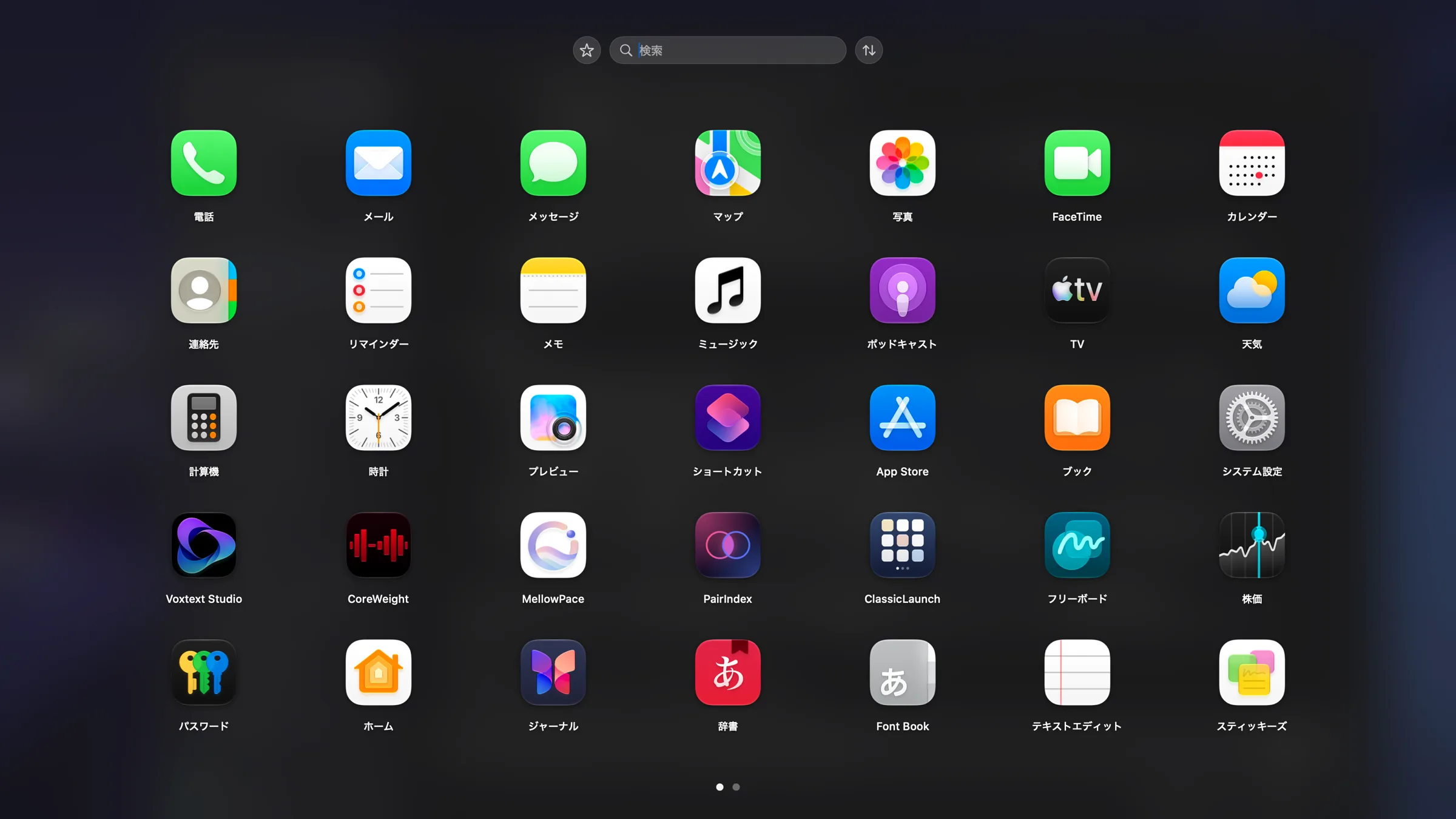
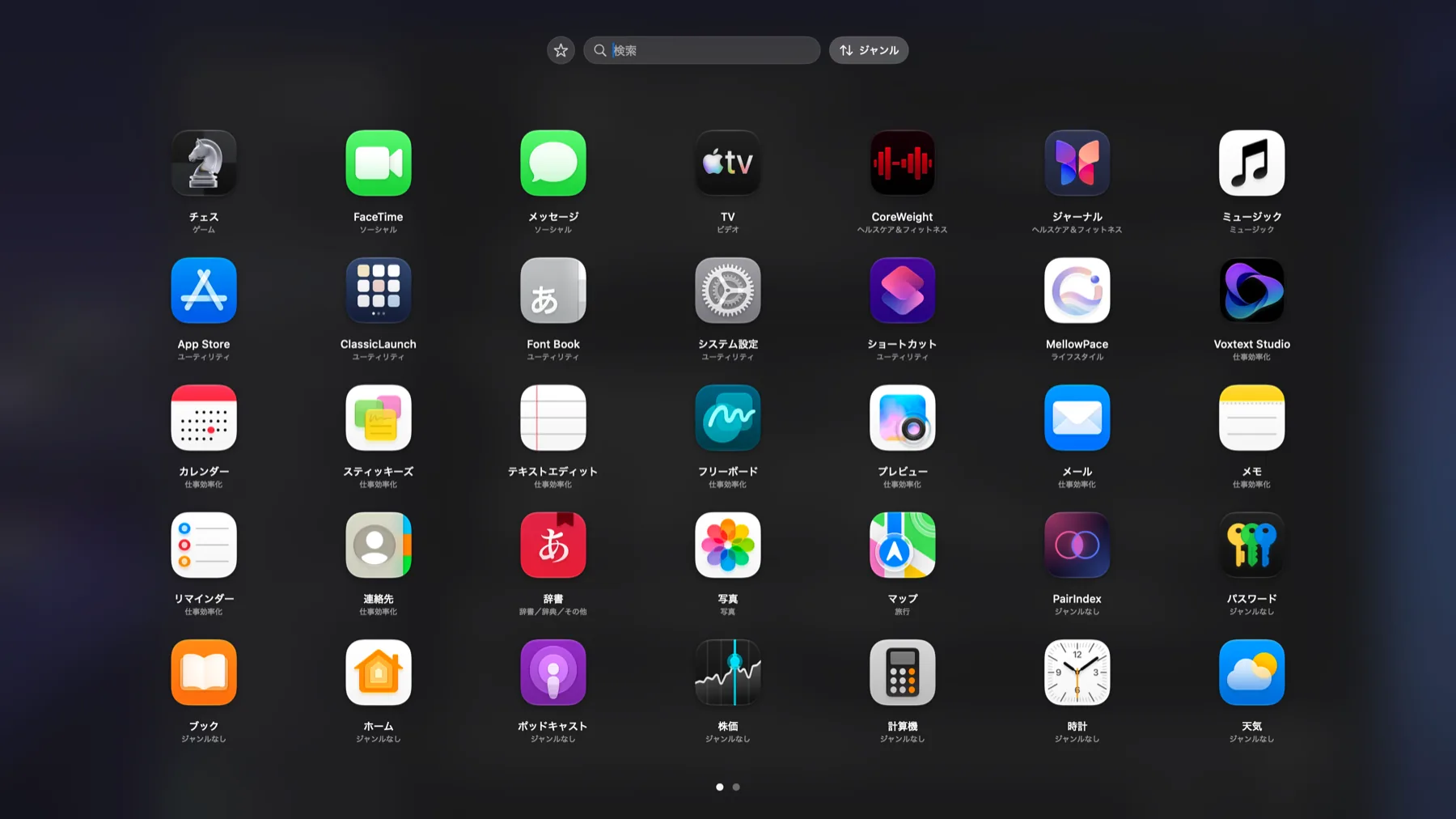
Scan the whole grid and pick with your eyes. Flip pages like before.
LAUNCHPAD-STYLE LAUNCHER FOR MAC
Apple replaced Launchpad in macOS 26 Tahoe with the Apps view in Spotlight. You can still open apps by typing a name there, or put the Applications folder in the Dock for a list. Flipping pages, arranging icons freely and stacking icons into folders no longer work as before. We found no setting to bring Launchpad back, and no workaround that reliably works right now. For people who want free arrangement, ClassicLaunch is one free option.
For anyone who wants
Launchpad back.
Flip through pages, drop one icon on another to make a folder, and keep apps where your fingers expect them — on a Mac without Launchpad. Plus sorting by name, date or genre, and a favorites-only view.
Latest: 1.3.0 (build 29) · updated 2026-11-23
LAUNCHPAD MISSING?
Apple removed Launchpad in macOS 26 Tahoe and replaced it with the Apps view inside Spotlight. It has not come back in macOS 27, and we could not find a setting to bring it back. Flipping pages, arranging icons yourself, dropping one icon on another to make a folder — the way your fingers learned it no longer works as it did. ClassicLaunch brings that way of working back.
Scan the whole grid and pick with your eyes. Flip pages like before.
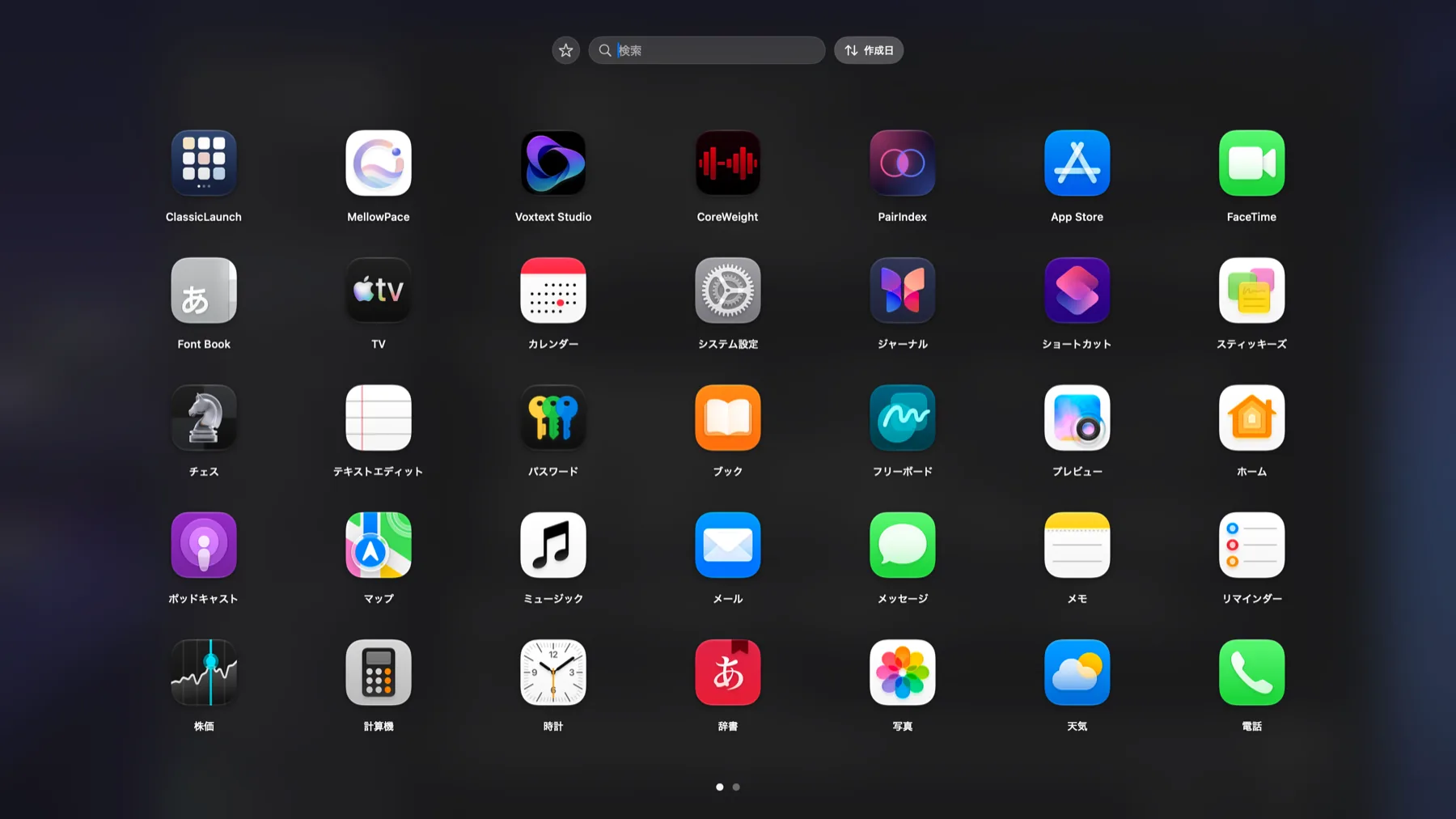
Drag icons anywhere. Your fingers learn the places.
Just drop one icon on another. Rename it any time.
WHAT IT DOES
A 7 × 5 grid fills a blurred full-screen backdrop. Flip pages with a trackpad swipe, the mouse wheel, the arrow keys or the dots below. Click an empty spot to close it.
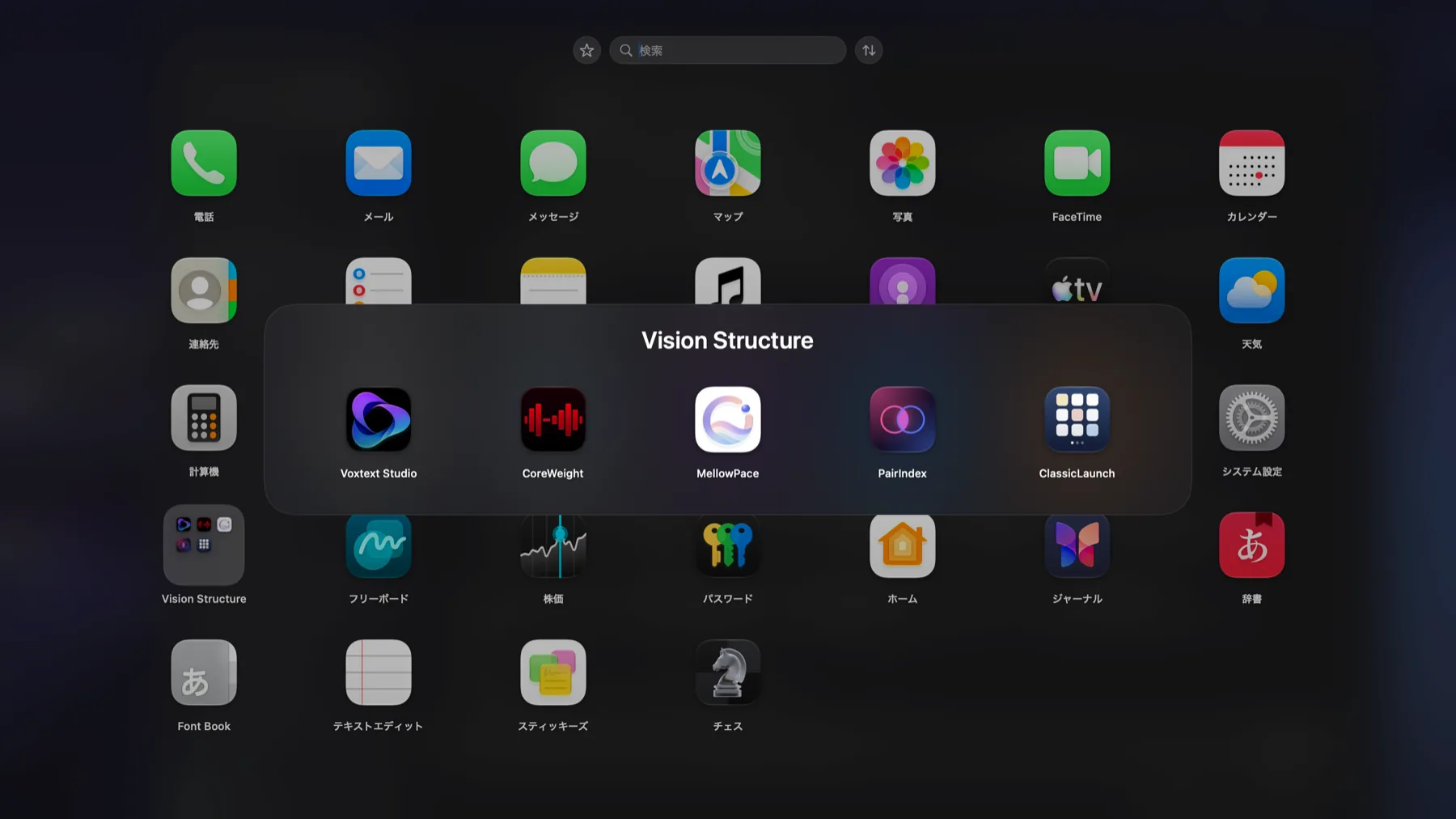
Drag an icon onto the middle of another and they become a folder. The name comes from the apps’ genre and you can rename it freely. Drag an icon out to take it out again.
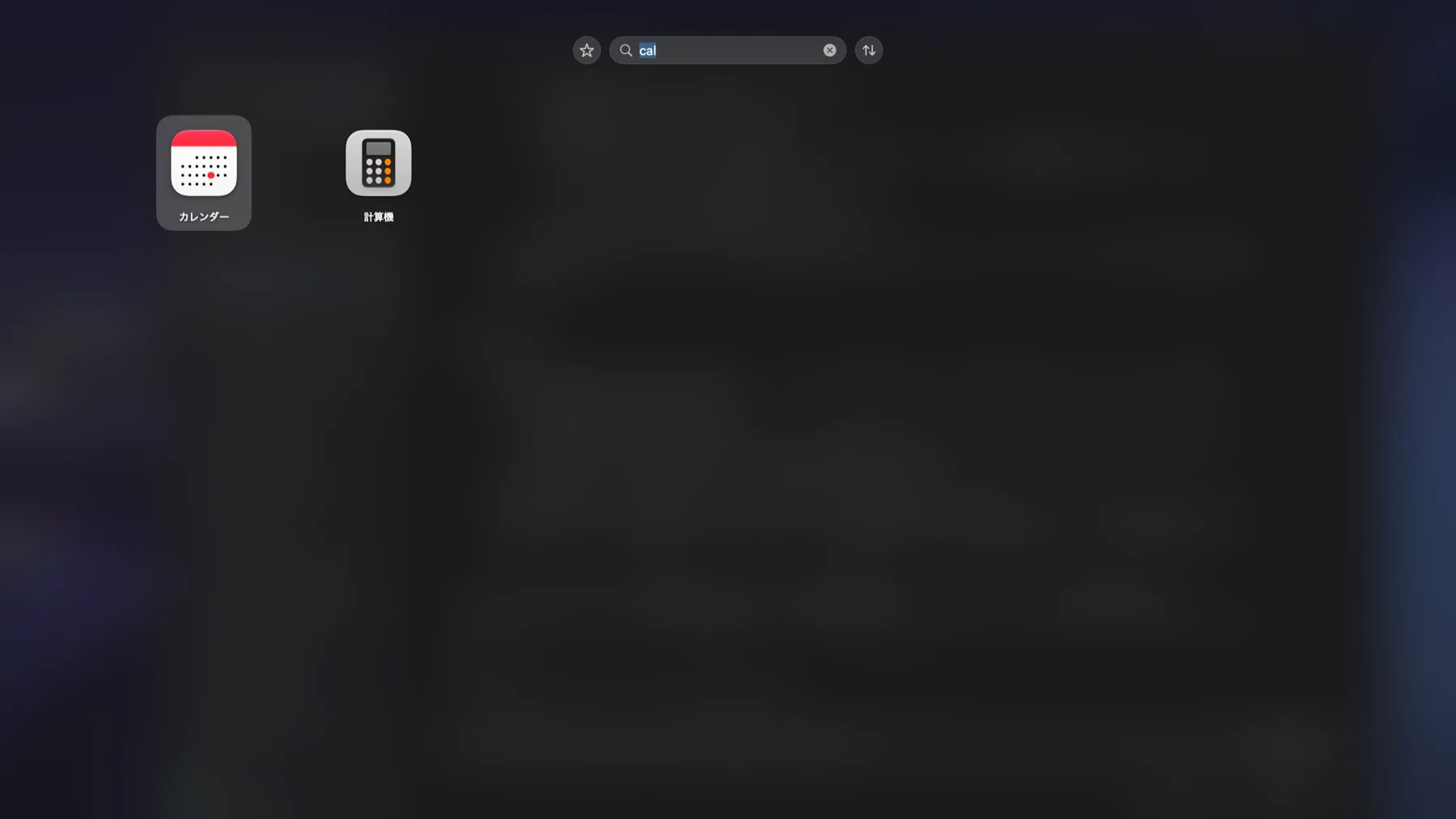
Start typing as soon as it opens. It finds apps by their localized name or their file name (typing “cal” finds Calendar and Calculator). Press Return to launch the first result; use the arrow keys to choose.
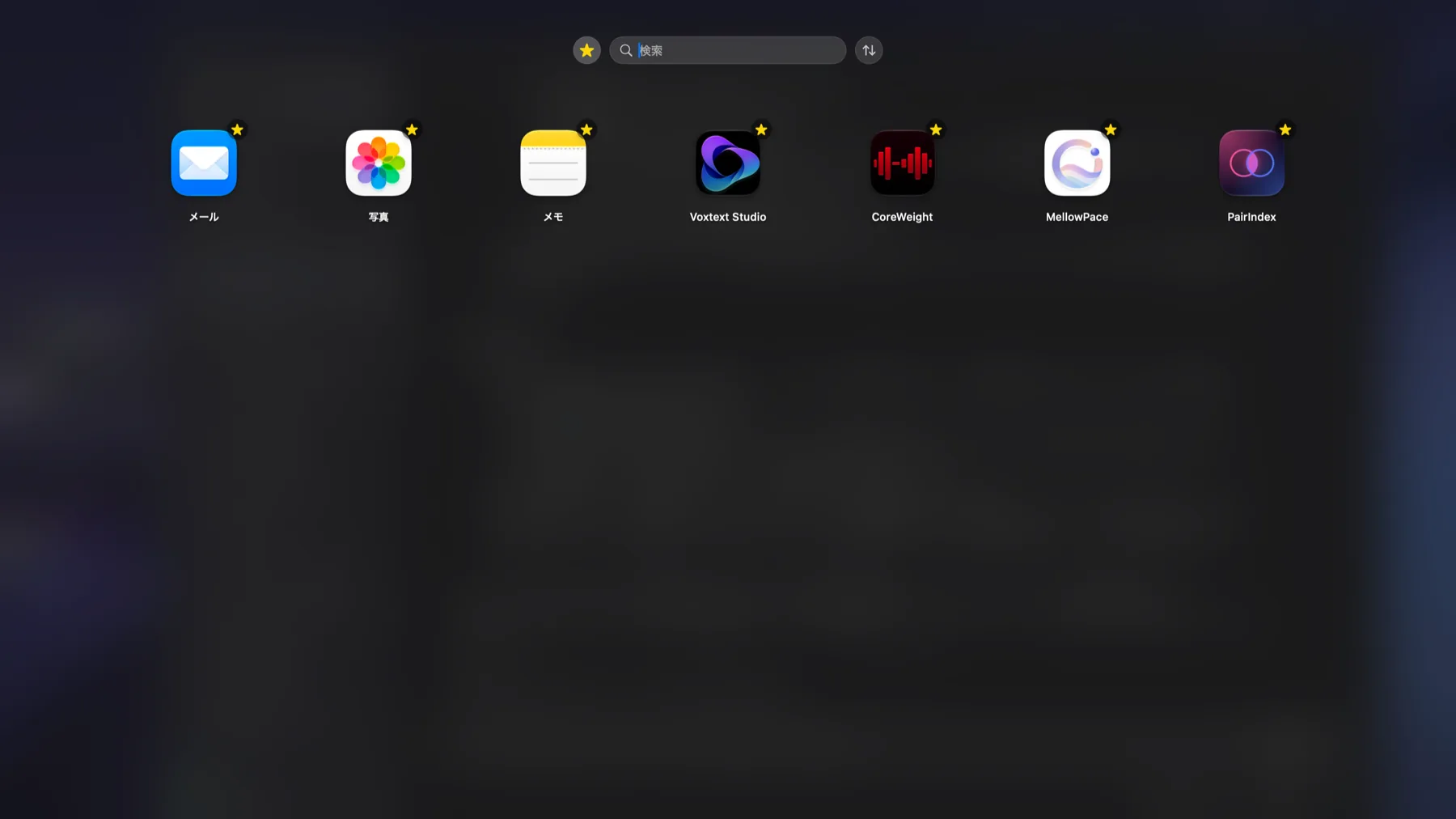
Right-click an app and choose “Add to Favorites.” Press the star next to the search field to show favorites only. If the little star badge on icons is too much, turn it off from the menu bar. In “Original” order you can drag your favorites into any order. ⌘-click to select several and drag them together (⇧-click selects a range).
Switch between name, creation date (newest first) and genre. In genre order, the genre appears in small type under each app name. Your own arrangement stays available as “Original.”
⌥Space, the ▦ icon in the menu bar, the Dock icon, or a hot corner of your screen. You can also choose whether to keep it in the Dock.
Hide apps you never use and bring them back later. Reveal any app in Finder.
New apps join at the end; removed apps disappear on their own.
Your layout and settings are stored only on this Mac. No network use, no ads, no sign-up.
LAUNCHPAD ALTERNATIVES
ClassicLaunch suits some people and not others. Here is how they compare.
A folder in the Dock can be shown as a fan, grid or list, and sorted by name, date added, date created and more, from its right-click menu (per Apple’s guide). No extra software needed.
The built-in Apps view you open with ⌘ + Space. No extra software needed, and a good fit if you like to type a name and open.
A full-screen grid you can page through, with icons you drop together into folders. You can also switch to name, date or genre order. It needs a download, and it does not yet import your old Launchpad layout or open with a pinch.
To put the Applications folder in the Dock: drag the Applications folder in Finder to the right side of the Dock, right-click it, and set “Display as” to “Grid.” No extra software needed.
FAQ
Apple removed Launchpad in macOS 26 Tahoe and replaced it with the Apps view inside Spotlight. The Launchpad icon in the Dock was replaced by an Apps icon.
Macs running macOS 26 Tahoe or later do not have Launchpad. The rocket icon that used to sit in the Dock has been replaced by the Apps icon in Spotlight. If you want a page-by-page grid like before, a free Launchpad-style app such as ClassicLaunch is one way to get it.
The old Launchpad opened from its Dock icon, the F4 key or a trackpad pinch. Since macOS 26 removed Launchpad, those no longer open it. ClassicLaunch opens with ⌥Space (Option + Space), the ▦ icon in the menu bar, its Dock icon or a hot corner. The F4 key and the pinch gesture are not supported yet.
With ClassicLaunch you can drag apps where you want them, drop one icon on another to make a folder, leave empty cells, sort by name, creation date or genre, hide apps you do not use, and show only your favorites. ⌘-click to select several apps and drop them into a folder together.
In the old Launchpad, pressing and holding showed a ✕ to delete, but generally only for apps installed from the App Store. Other apps had to be removed by dragging them from the Applications folder in Finder to the Trash. ClassicLaunch has no feature to delete apps. You can hide apps you do not use from the right-click menu and bring them back later.
Launchpad was a full-screen launcher that showed the apps on your Mac as icons, like an iPhone home screen. It debuted in OS X Lion, and you could flip pages and drop icons on each other to make folders. macOS 26 Tahoe removed it and replaced it with the Apps view in Spotlight. ClassicLaunch is a free app that works in a similar way.
It depends on how you work. If you like to type a name and open, the built-in Spotlight Apps view needs no download. If you want the Applications folder close at hand, put it in the Dock. If you want a full-screen paged grid with folders and a favorites view, a Launchpad-style app such as ClassicLaunch fits — it is free, but it does not yet import your old layout or open with a pinch.
We could not find a setting to bring it back. You can use a Launchpad-style app such as ClassicLaunch.
Terminal tricks that called up the old Launchpad circulated during the macOS 26 developer betas, but they were reported (for example by Macworld) to stop working in the final release. ClassicLaunch does not rewrite any system setting; it is an ordinary app.
No — Launchpad is not back in macOS 27. ClassicLaunch has been tested on macOS 27.
A Dock folder opens as a fan, grid or list. ClassicLaunch shows a full-screen grid, flips pages, and lets you drop icons together into folders. You can also switch to name, date or genre order.
Not yet. At first apps are ordered as Apple apps, utilities, then everything else. You can then drag them around and drop icons together to make folders.
Not at the moment. You can open it with ⌥Space, the ▦ icon in the menu bar, the Dock icon, or a hot corner.
Choose “Hot Corner” from the ▦ menu and pick a corner. If macOS already assigns something to the same corner, both will run — set the macOS one to “−” (System Settings → Desktop & Dock → Hot Corners).
It is free, with no ads and no sign-up. It is signed with a Developer ID and notarized by Apple. It does not use the network, and your layout and settings stay on this Mac.
It supports macOS 14 or later and is a universal build for both Apple silicon and Intel. We tested it on Apple silicon with macOS 27, and have not tested on Intel Macs or on macOS 26 or earlier.
Japanese, English, Traditional Chinese, Indonesian, Hindi, Spanish and Brazilian Portuguese. It follows your Mac’s preferred language.
Quit ClassicLaunch and move it from the Applications folder to the Trash. Your layout record stays in ~/Library/Application Support/ClassicLaunch; delete that folder too if you want it gone.
DOWNLOAD
Open the ZIP, move ClassicLaunch to the Applications folder and launch it. Then press ⌥Space to open and close it.
Latest: 1.3.0 (build 29) · updated 2026-11-23
MORE APPS
Apps for iPhone, iPad, Mac, Windows and Android.
 Mac
 iPhone · iPad
 Voxtext Studio (Mac)iPhone · iPad
 Windows
 Mac (macOS 26 or later)iPhone

FOLLOW
News about the apps, on these accounts.
