
File-native workspace
On Mac. On Windows. Review files. Think. Write. Refine with AI. All in one workspace.
Verso Flow — A workspace to view, search and write files.
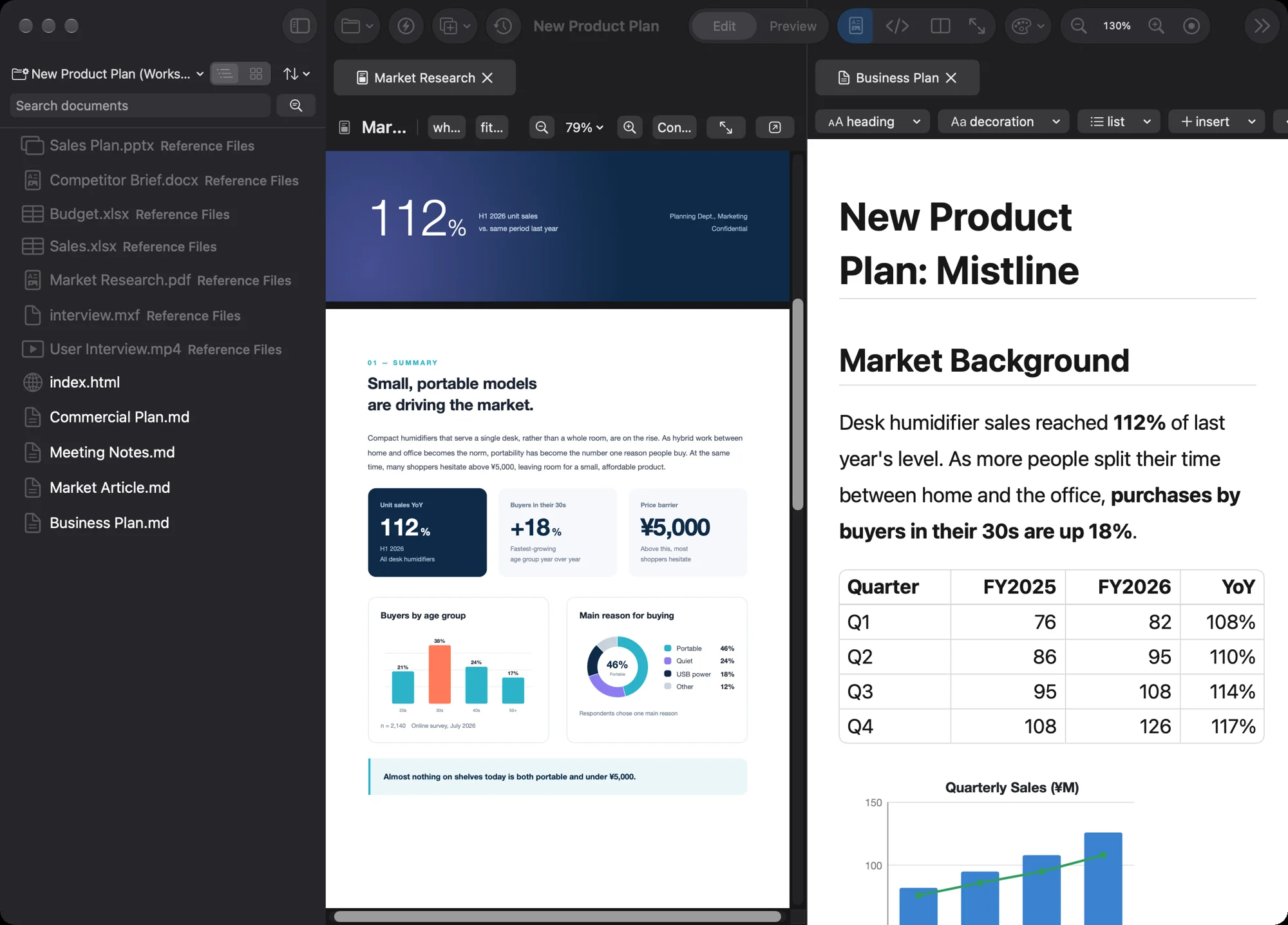
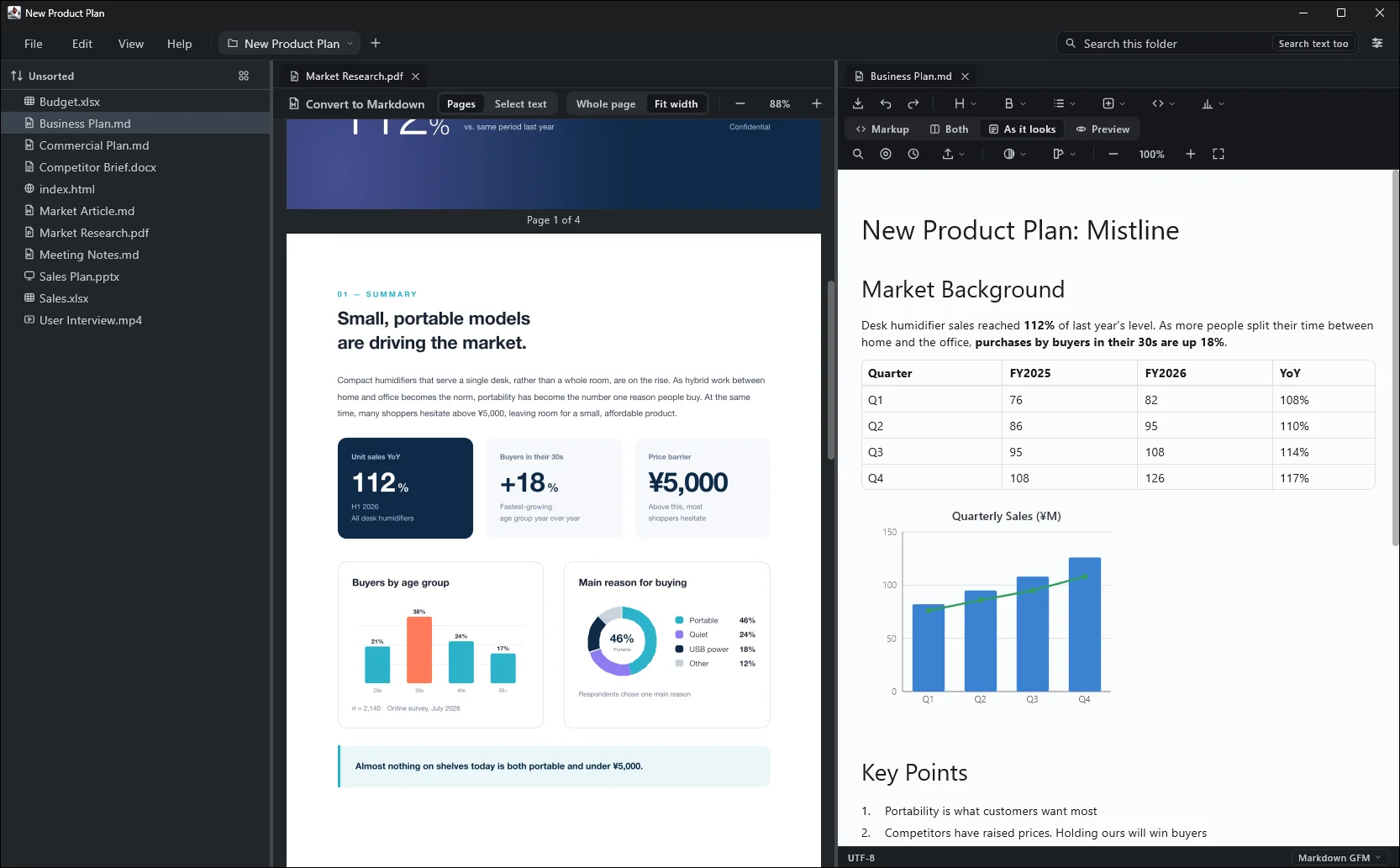
View files as they are.
Pull your work together in Markdown.
People and AI, in the same workspace.
Core features are free. No subscription.
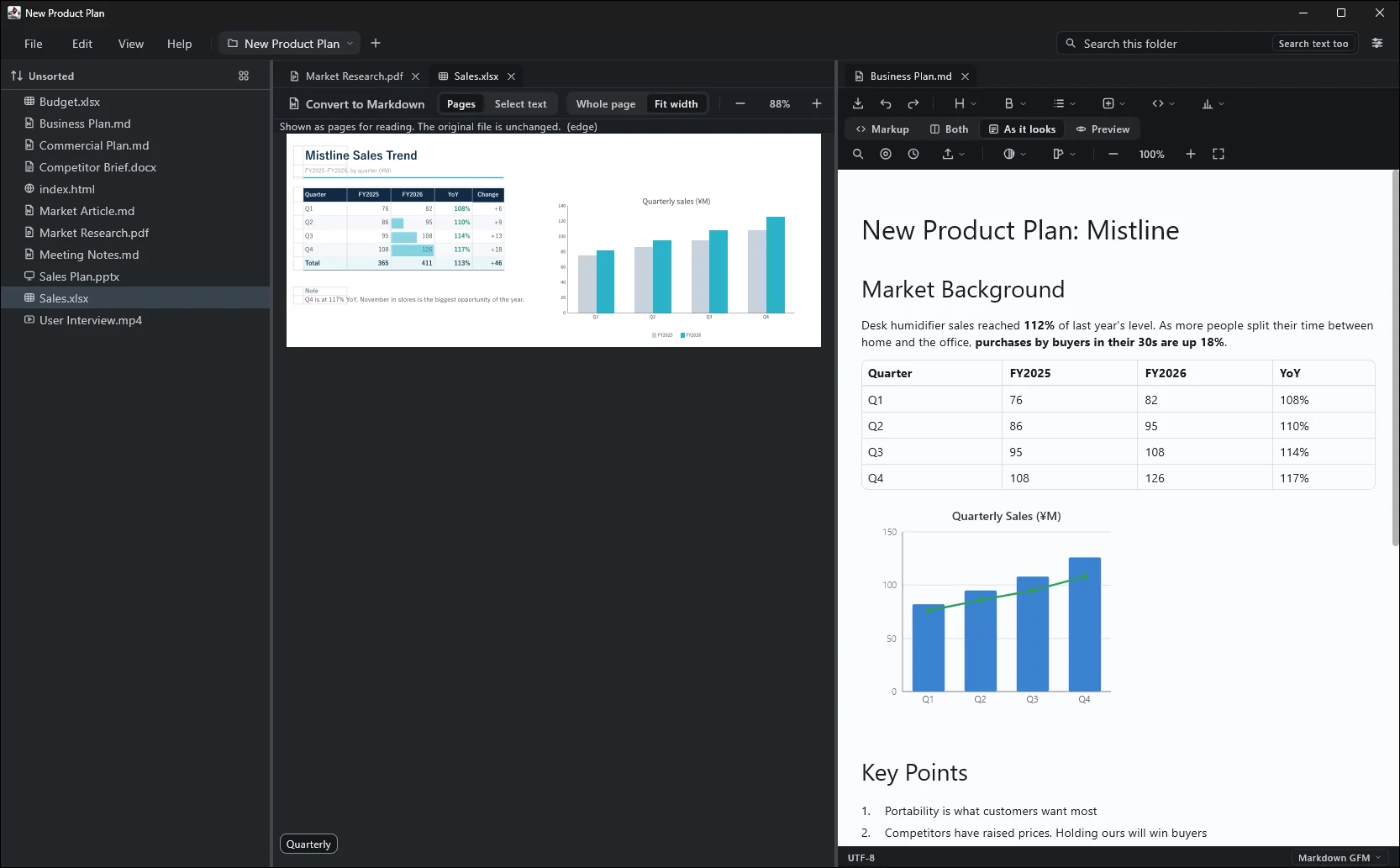
You open Word just to check a Word file.
You open Excel just to look up a number.
You hunt for a PDF.
You play a video.
You hand your files to ChatGPT.
Then you save the result somewhere else again.
Is the work itself growing —
or just all the “back and forth”
in between?
Verso Flow is a file-native workspace: one place to open, search, read, and write the files your project needs — and to work on them with AI.
Just open the folder you already use.
Word, Excel, PowerPoint, PDF, HTML, video, audio, Markdown —
all ready to work with, as they are.
Don’t reorganize your files
just to get work done.
A Verso Flow workspace isn’t a special vault. It’s an ordinary folder.
Word stays Word.
Excel stays Excel.
PDF stays PDF.
There’s no need to convert your files to another format or copy them into a notes app to use Verso Flow. No proprietary cloud. No proprietary file format.
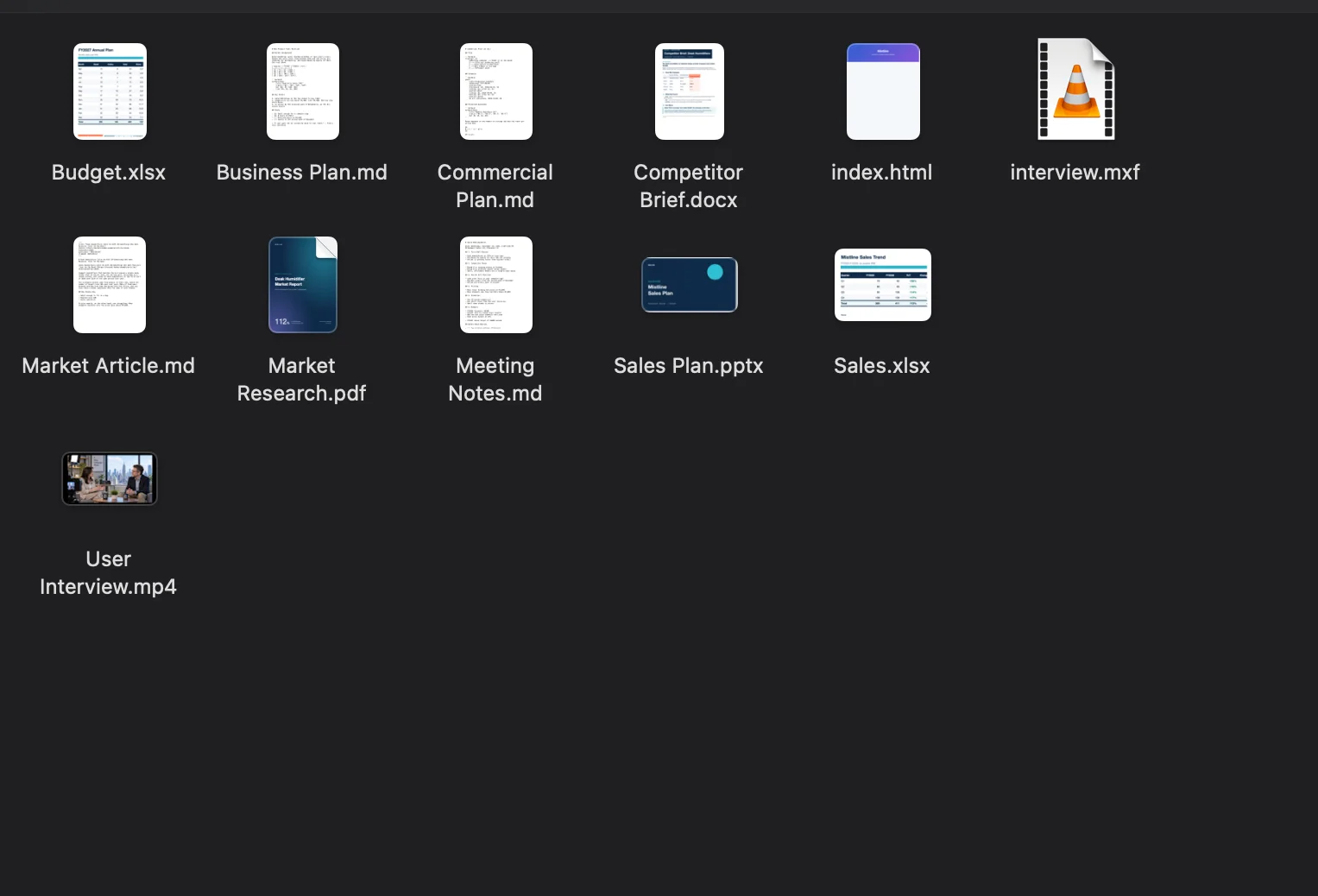
your workspace, as is
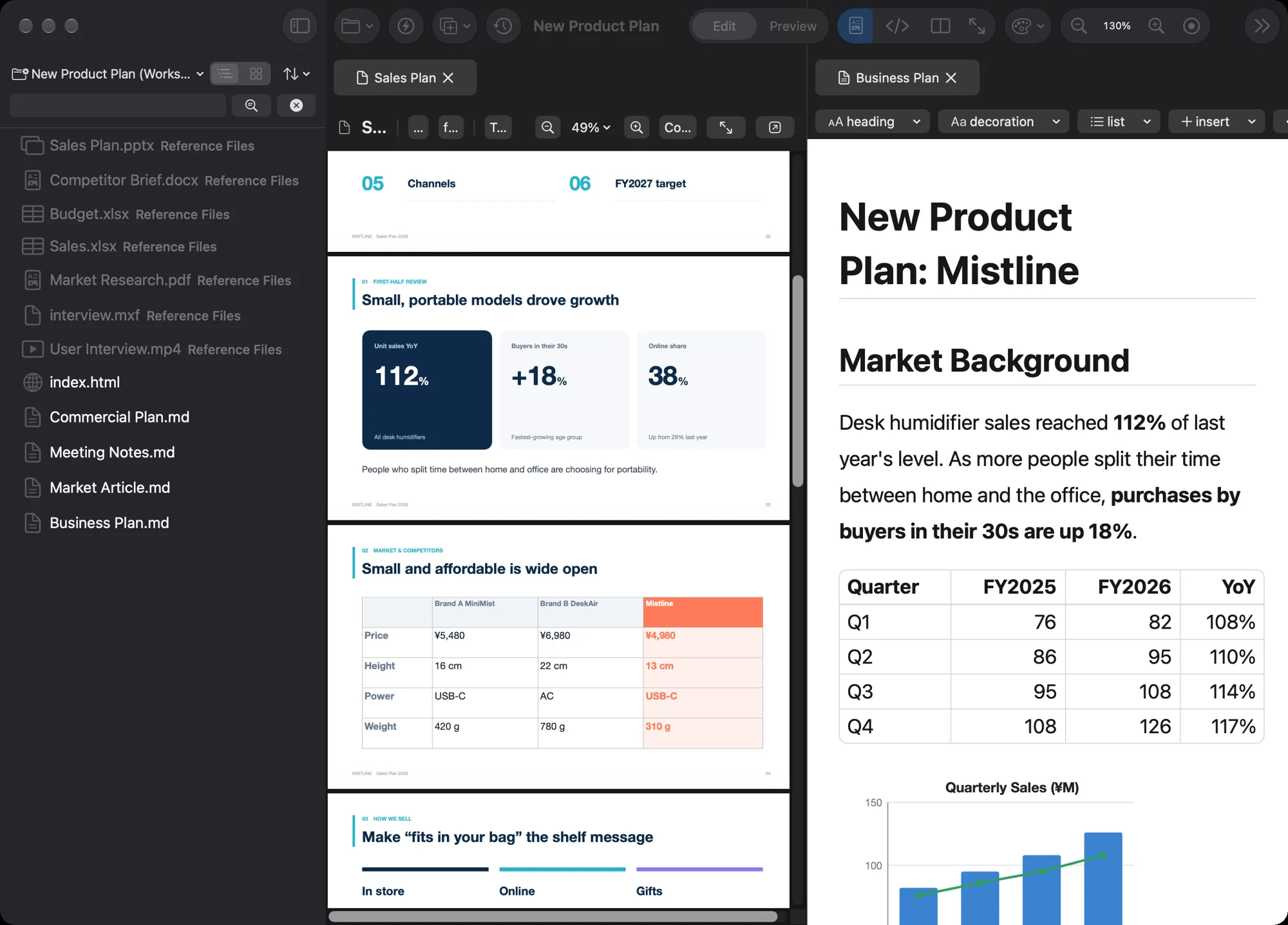
View files as they are. Pull your work together in Markdown.
What you produce stays as ordinary files.
First, just take a look — right there.
Most files you receive at work aren’t there to be edited — they’re there to be checked. With Verso Flow, you open them straight from your workspace.
Word as a document.
PowerPoint as slides.
Excel as sheets.
The goal isn’t to replace big, dedicated apps. It’s to stop switching apps every time you just want to check something. That’s what this workspace is for.
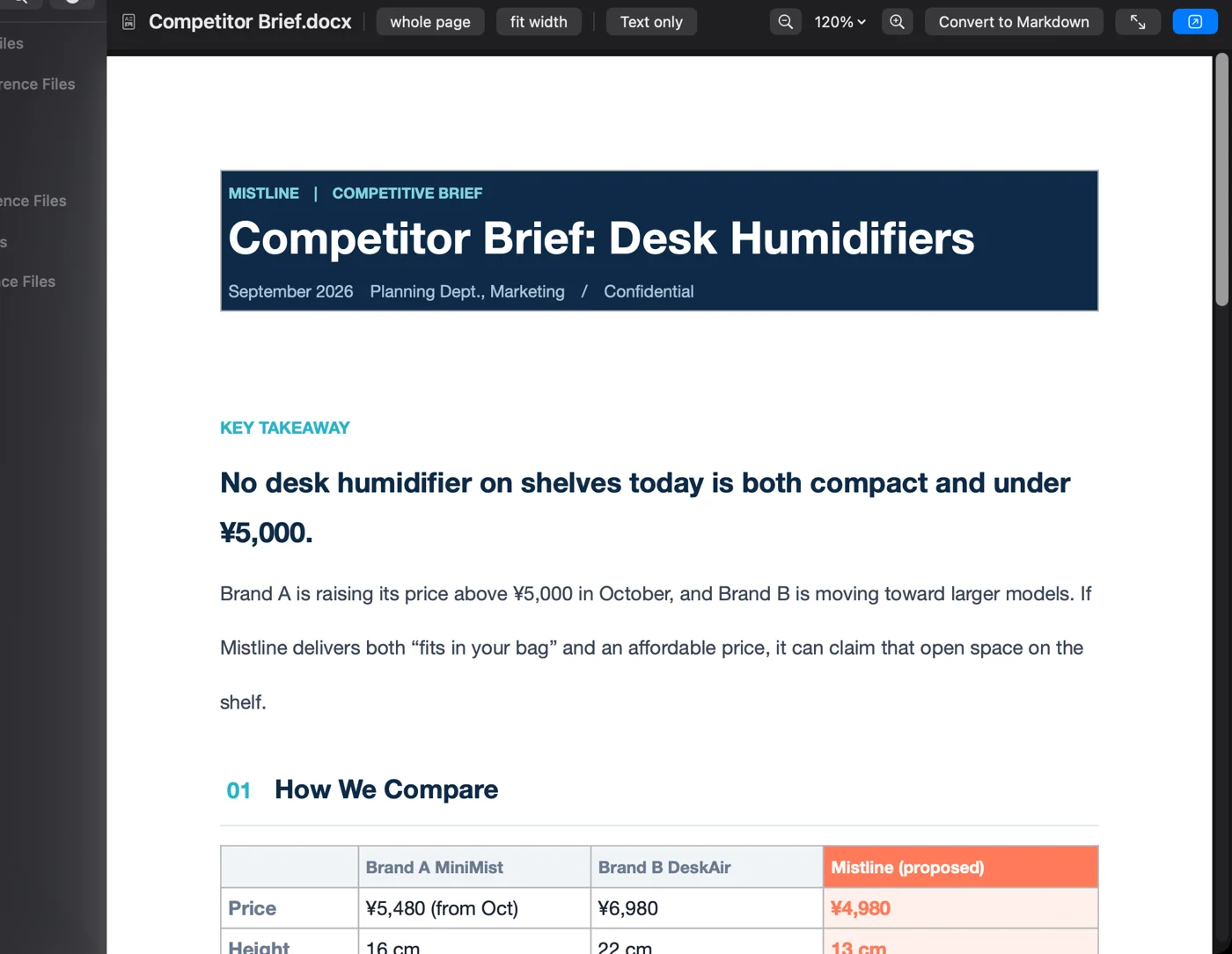
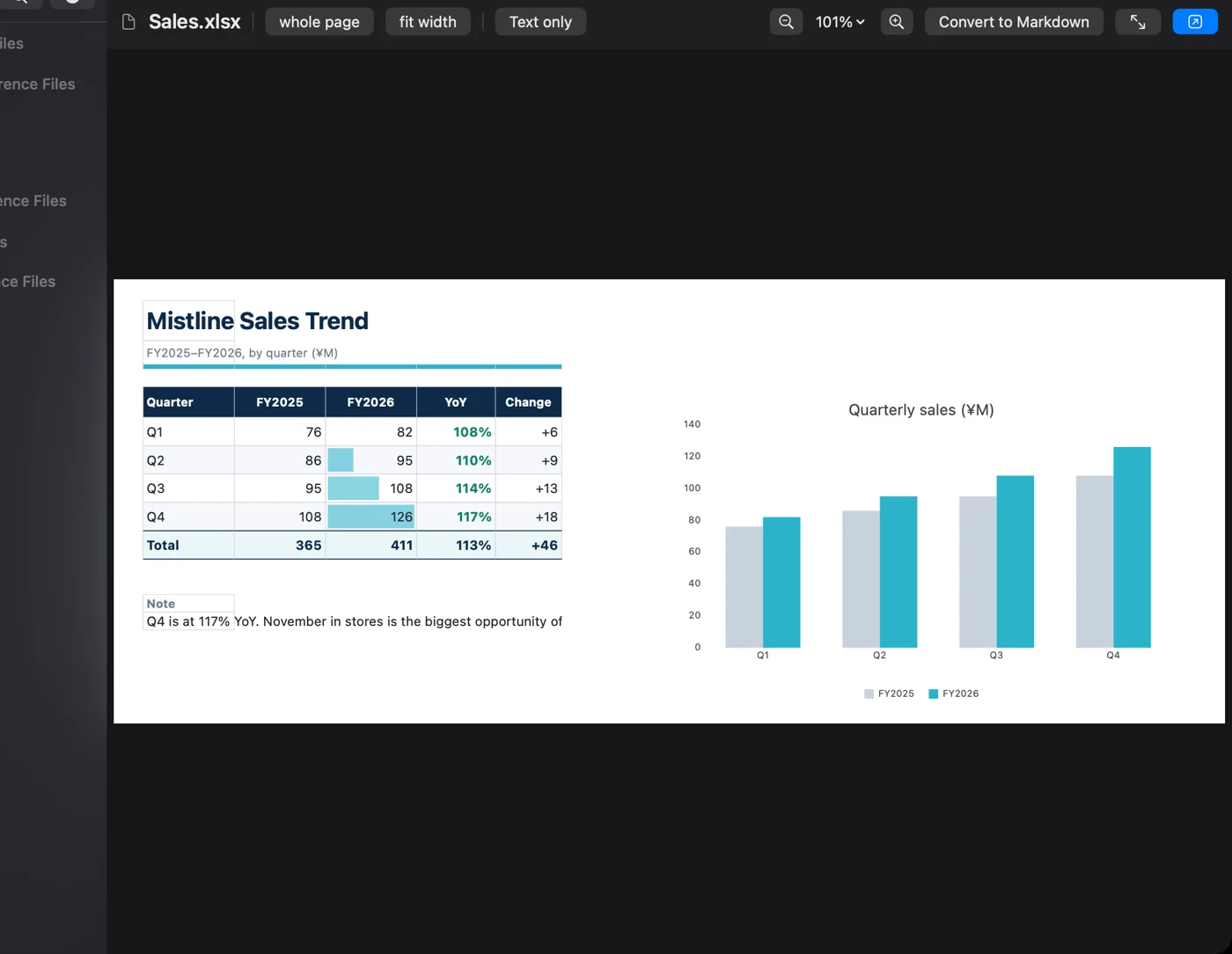
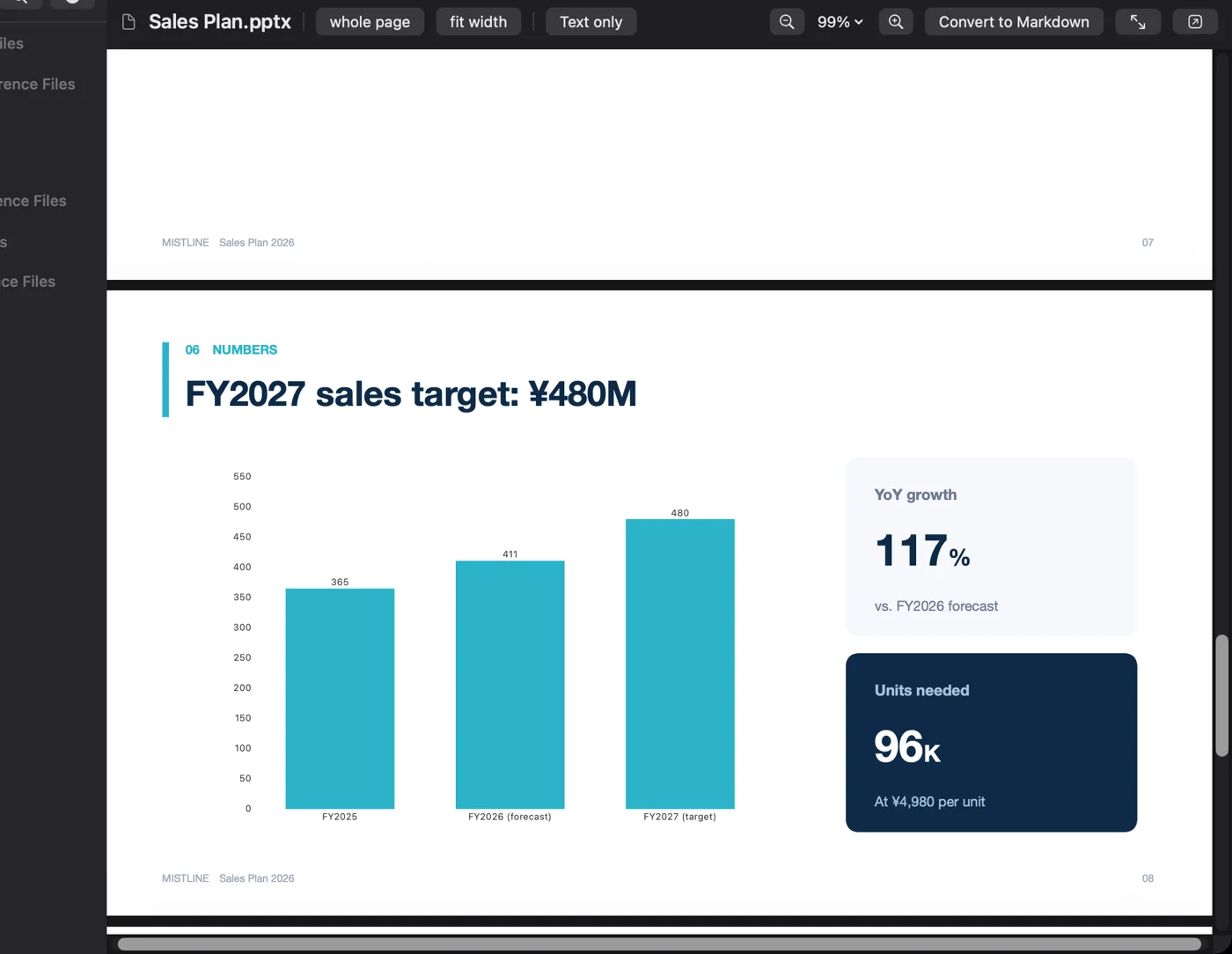
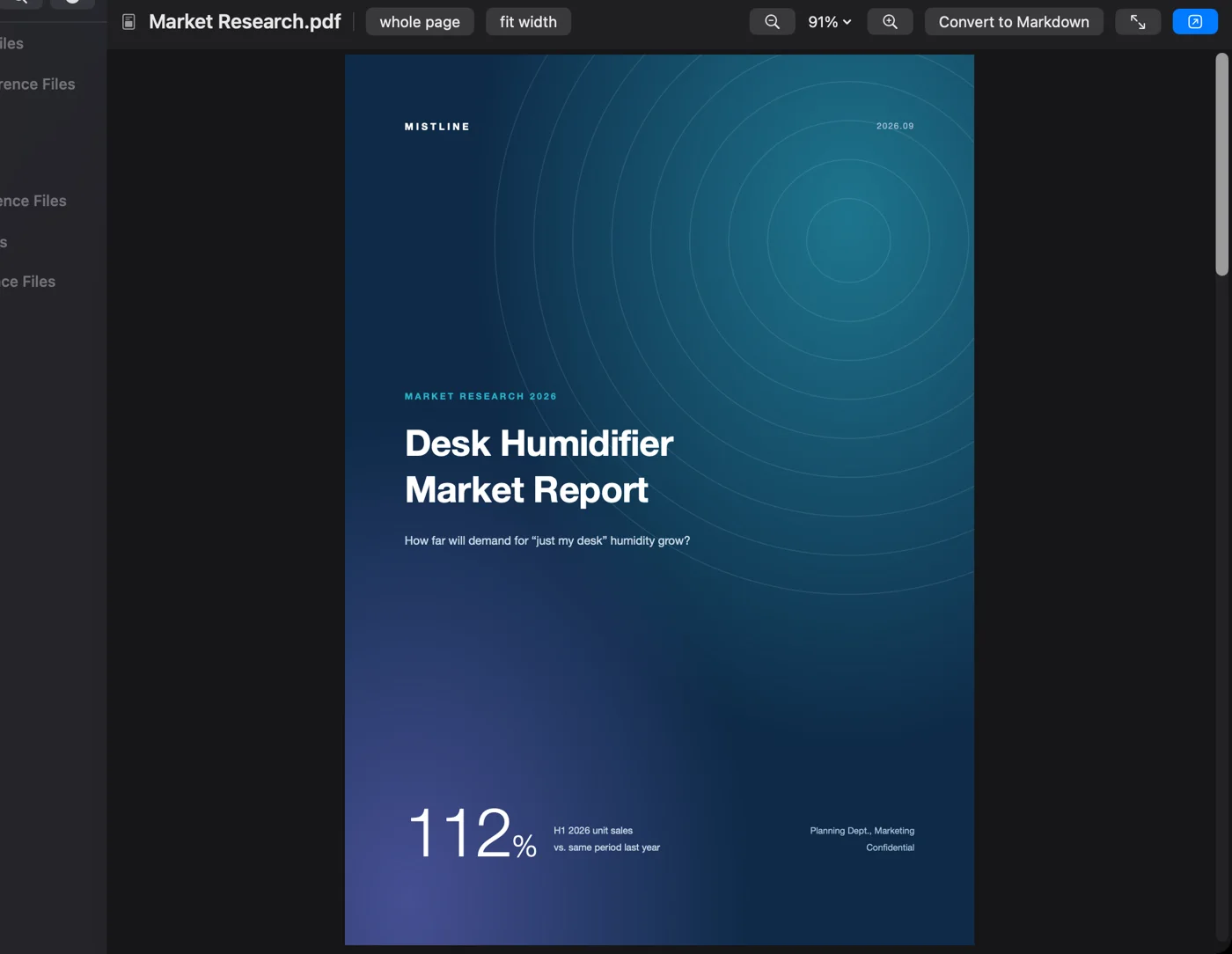
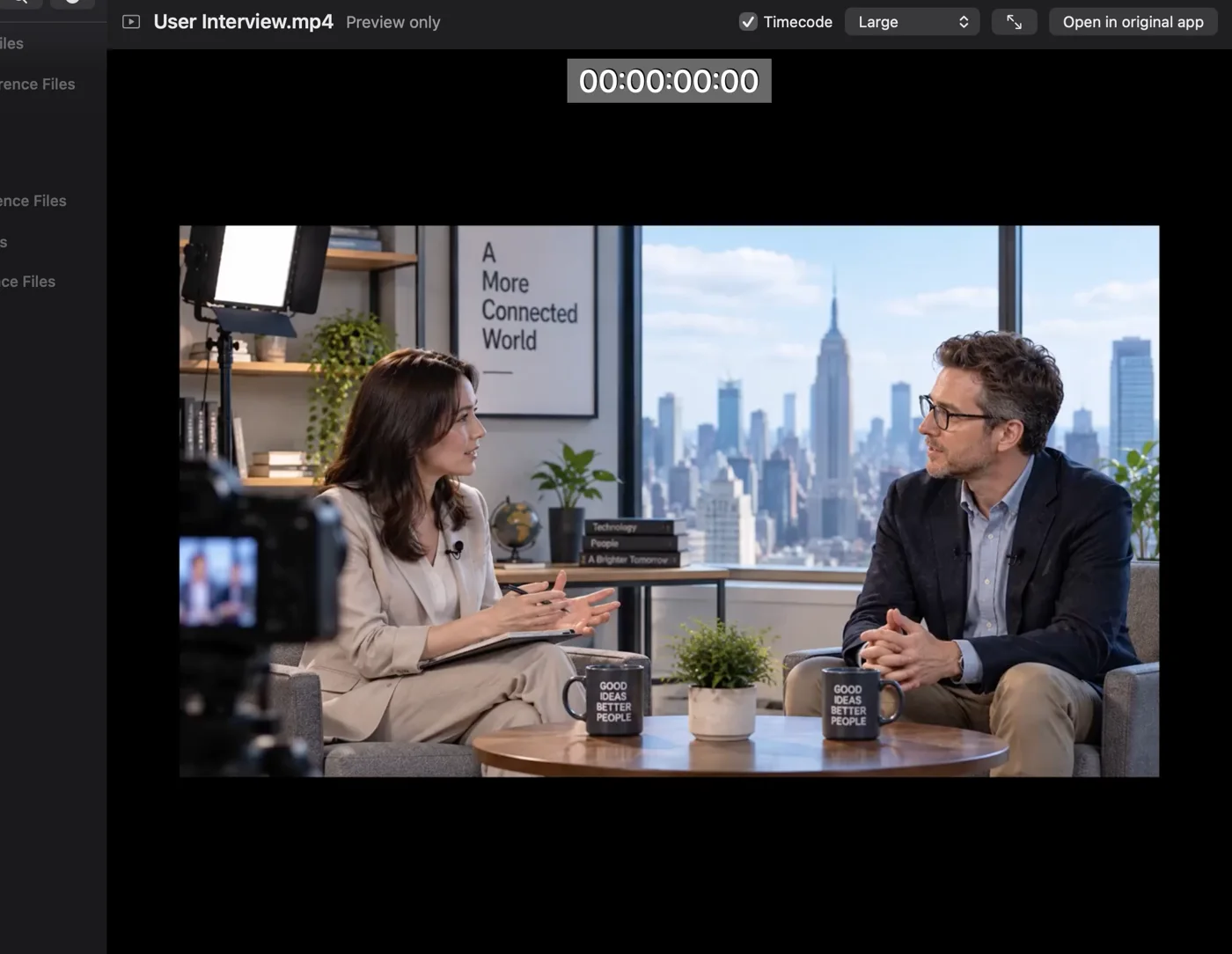
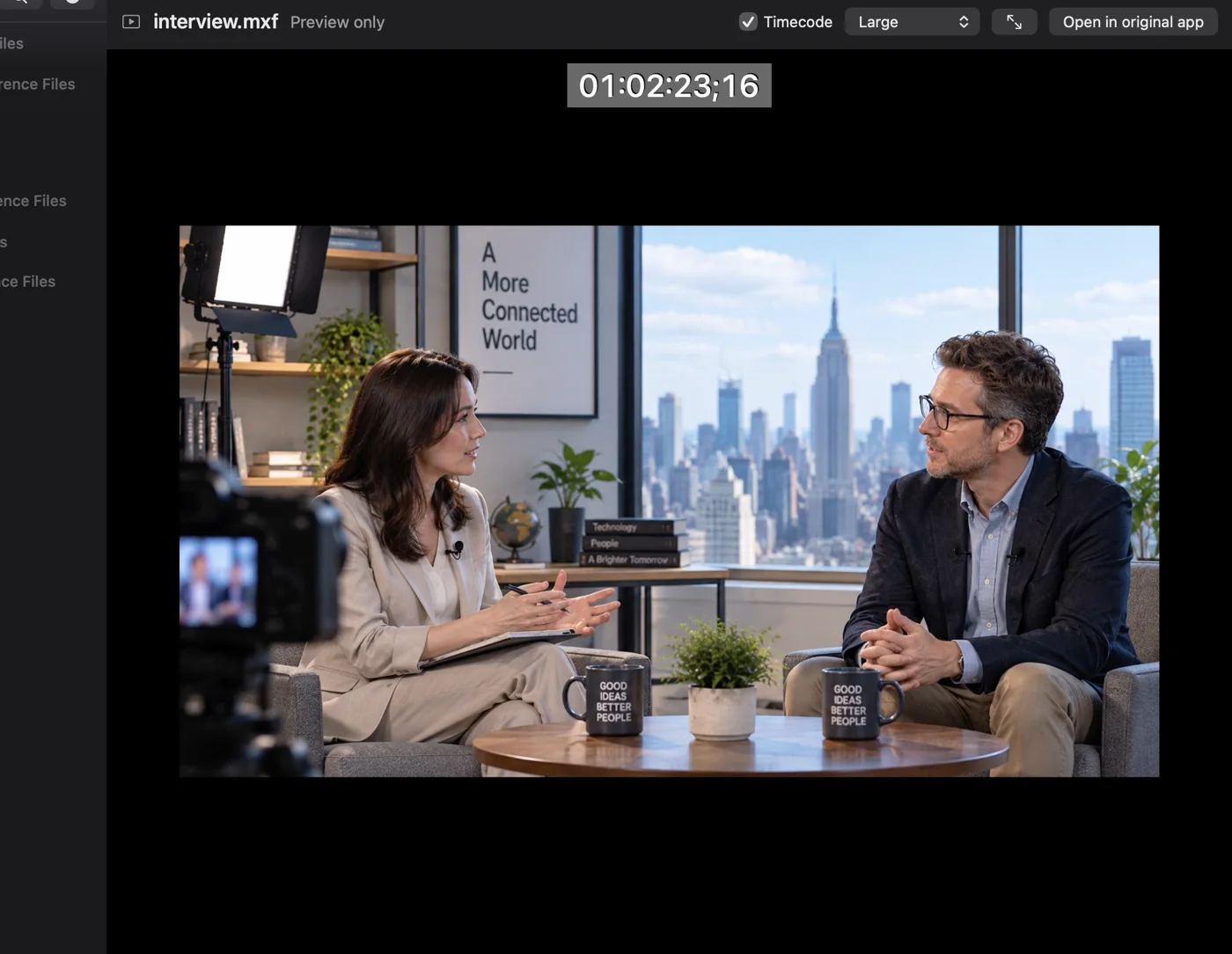
No more switching apps just to open a file.
Search what’s inside,
not just file names.
“Which Excel file had that number?”
“Which slide in that deck explained this?”
“Which document said that?”
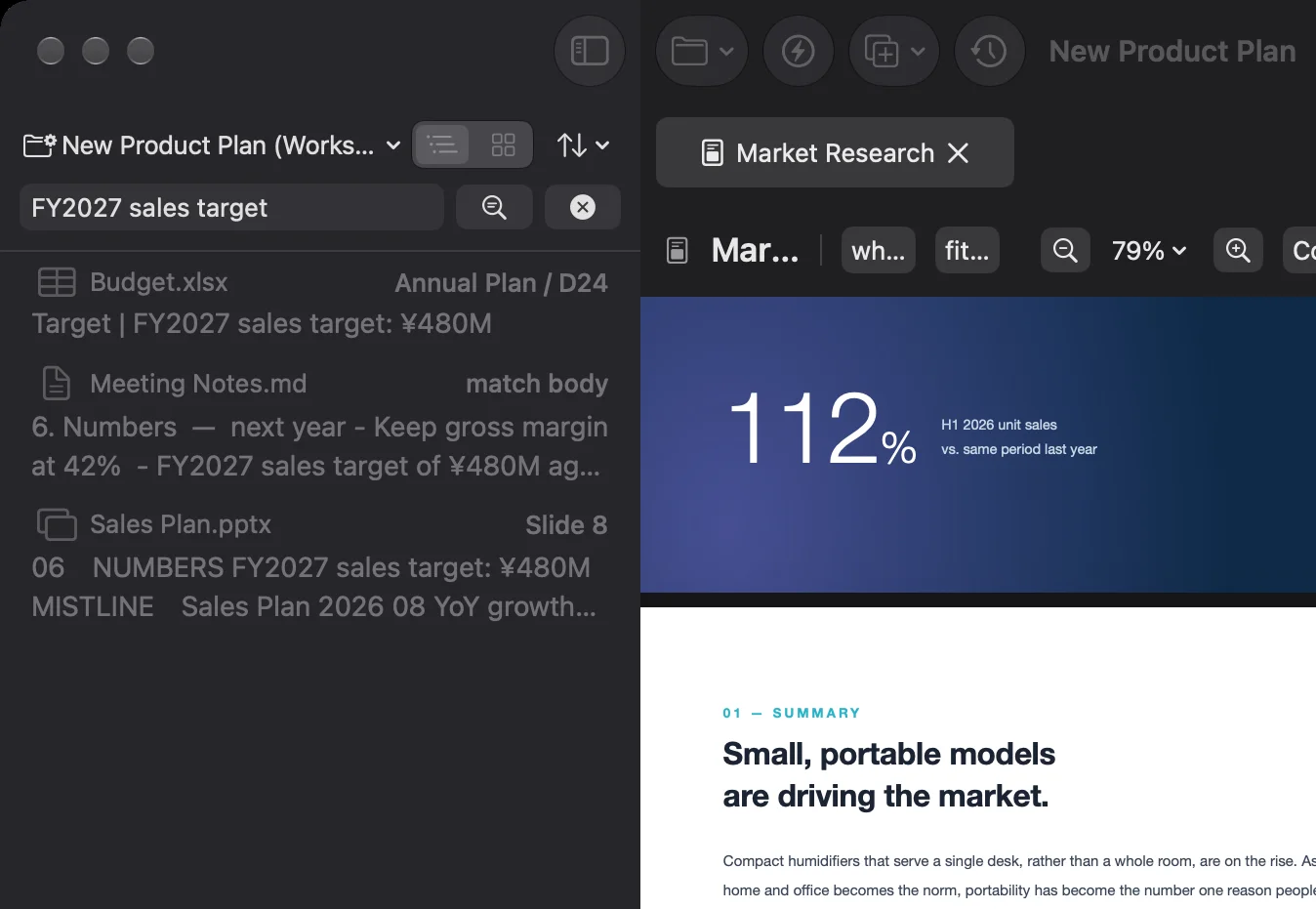
Verso Flow searches your entire workspace at once — not just Markdown and text, but the contents of PowerPoint and Excel files too. For each match, it shows you the slide, sheet, or cell where it was found.
No separate database to build just to find your files. Wherever your files live becomes a searchable workspace.
Don’t search for files. Search for what’s in them.
Write with your sources
right beside you.
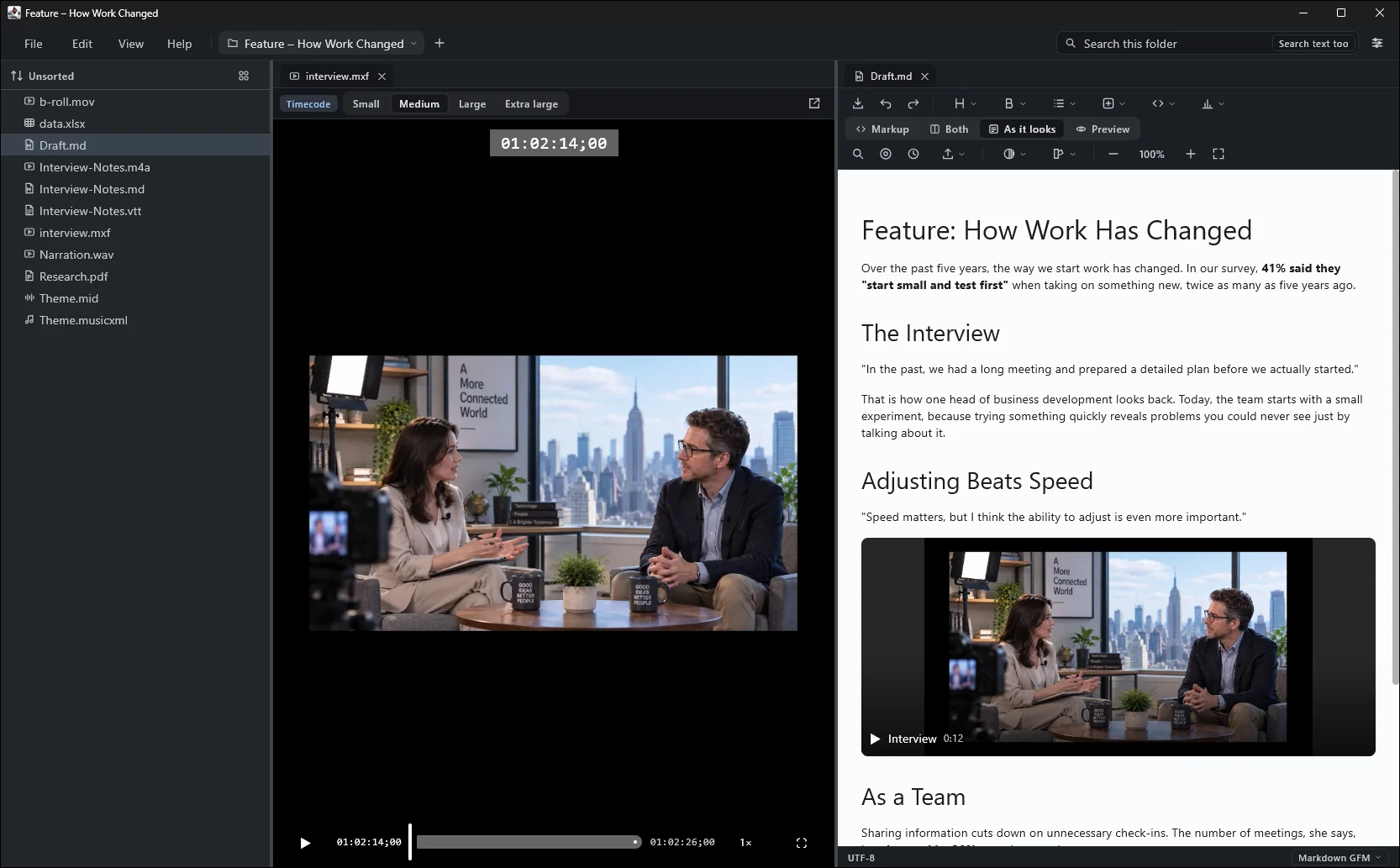
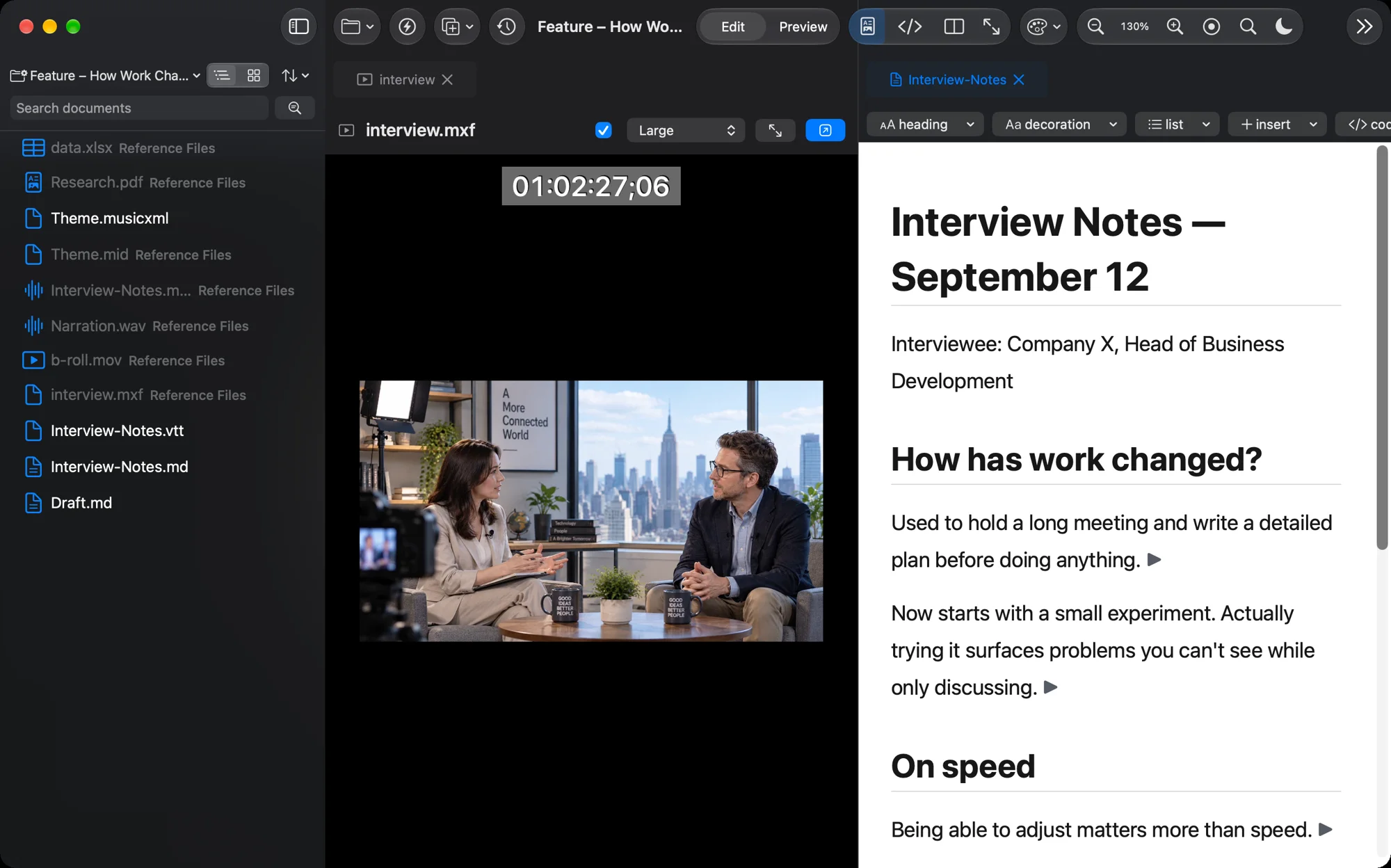
Split your workspace into two panes.
A PDF on the left. Your draft on the right.
A deck on the left. Your proposal on the right.
A video on the left. Your notes on the right.
Close the source. Open the draft. Go back to the source. Verso Flow cuts down on that back-and-forth.
Viewing and writing, in one continuous flow.
The web, Word, Excel —
brought together in one document.
Find a useful web page? Clip it on the spot. Open the Word file a client sent, check the numbers and charts in Excel, and keep the PDF research report beside you.
Pick out just what you need and gather it into one Markdown document. You can also convert Word, Excel, and PDF files to Markdown. Wherever the material comes from, it all comes together in one place.
Then have AI read that Markdown and ask it for help.
- “Organize this into three key points.”
- “Draft an outline for the proposal.”
- “Summarize this section in 50 words.”
Finally, export to Word or PDF and send it straight to whoever needs it.
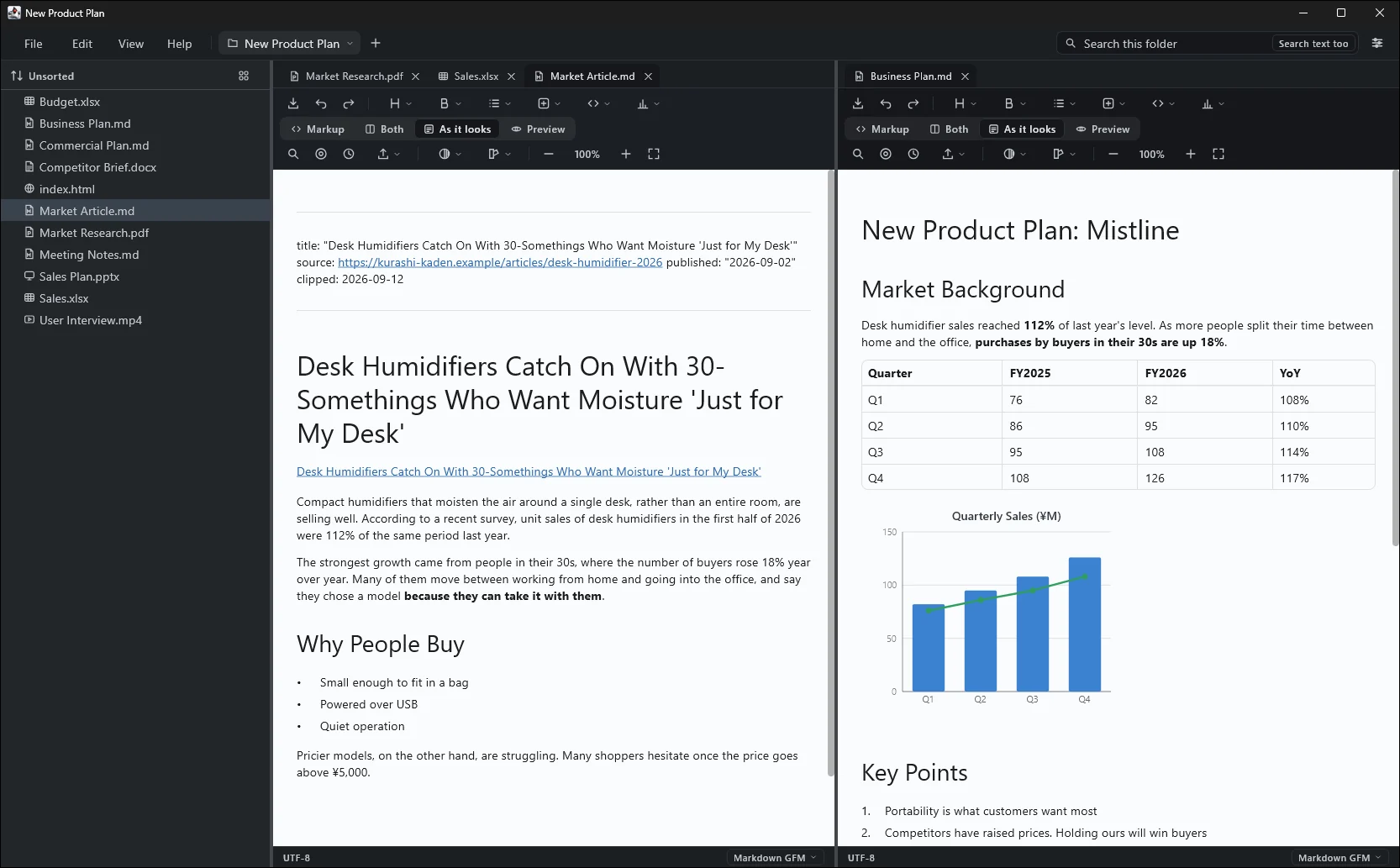
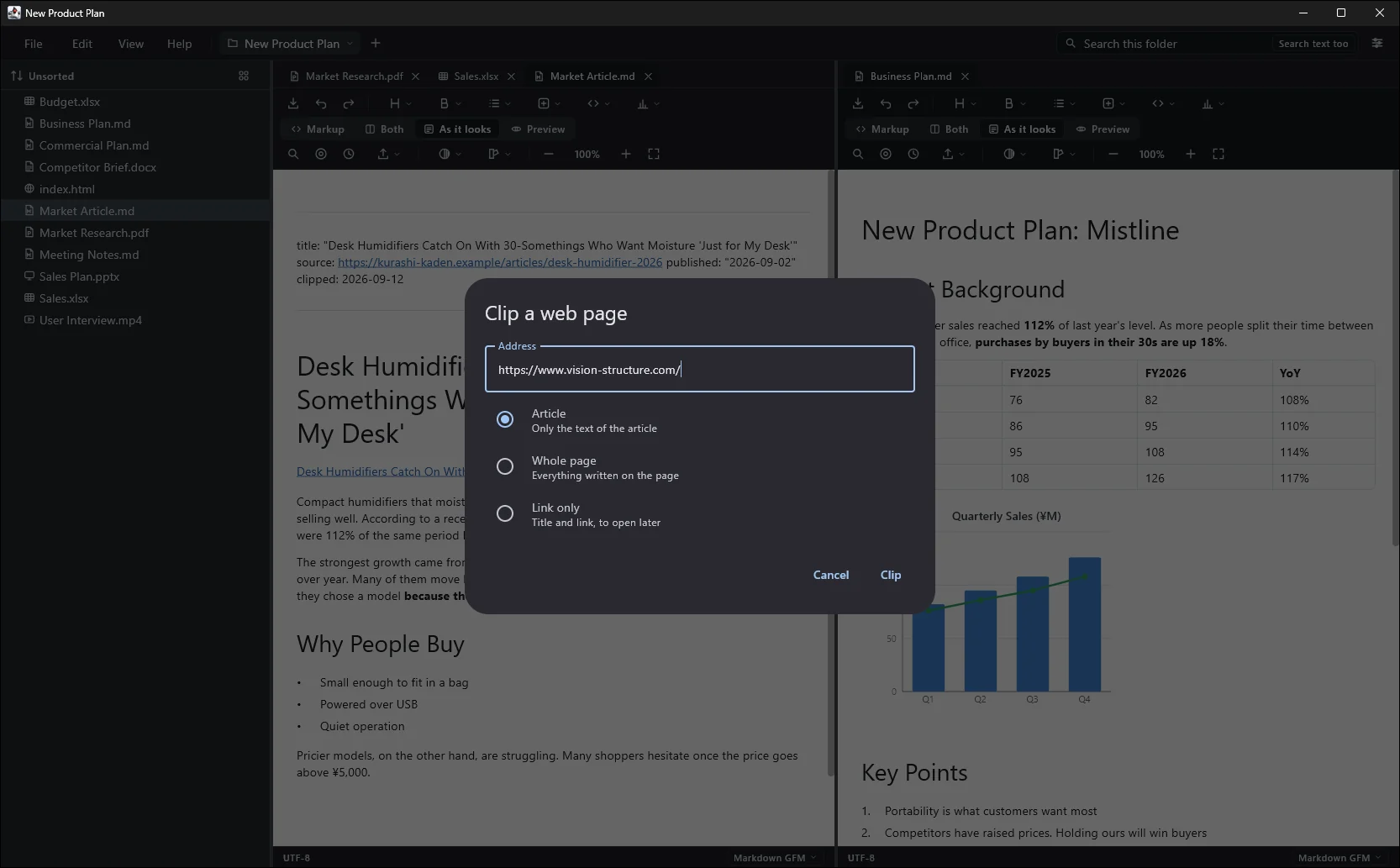
Save the web. Read the Word file. Check the Excel.
Straight into a single proposal.
From gathering to finishing, your work is never split up by file formats.
Pull your work together
in Markdown.
At the heart of your own thinking is Markdown — light, readable, and built to last. But you don’t need to learn the syntax.
Headings look like headings.
Tables look like tables.
Images look like images.
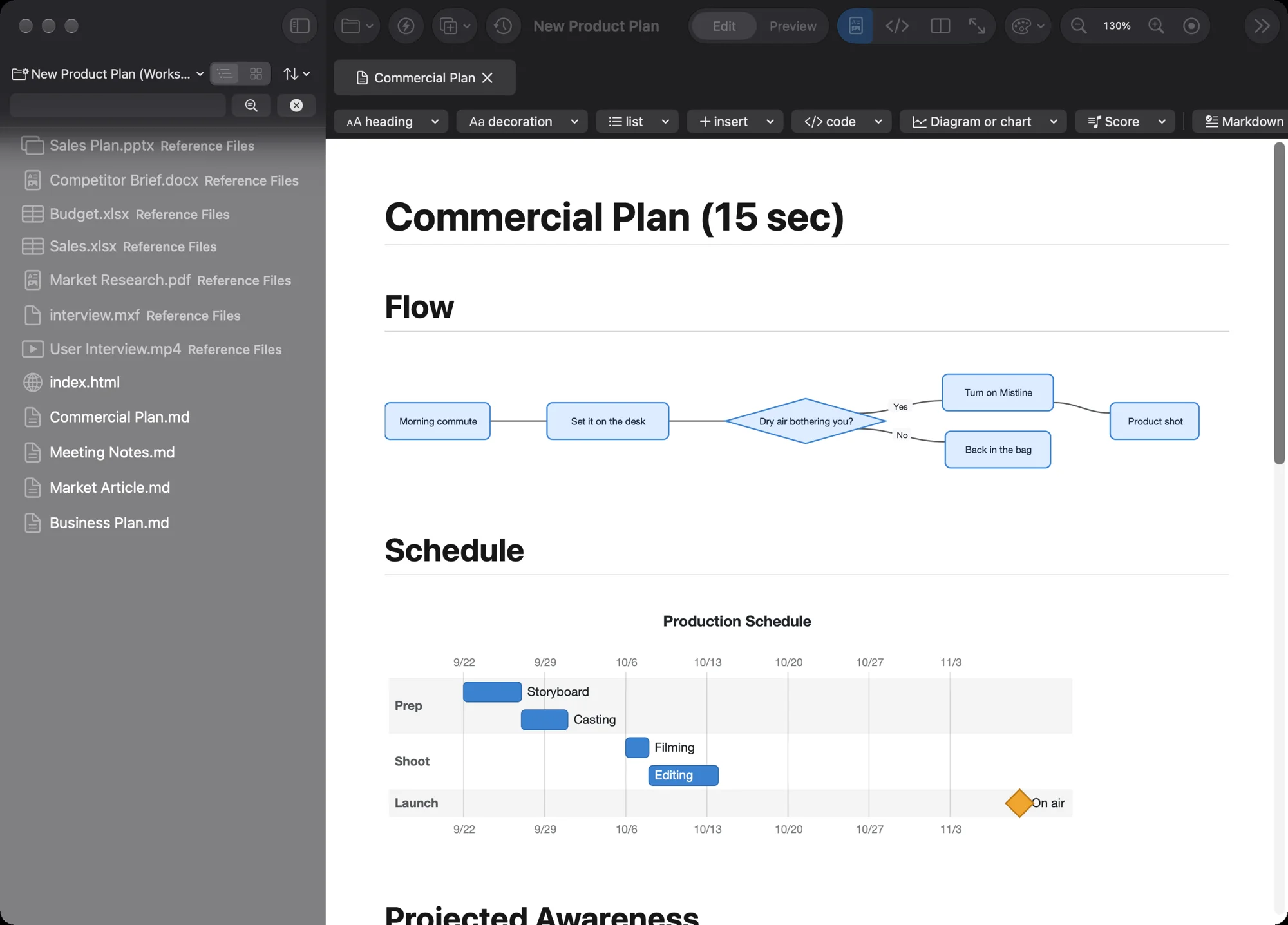
Edit right on the page, exactly as it looks. Click text to change it. Add tables, images, and diagrams from the “+” button. And of course, you can write Markdown syntax directly too.
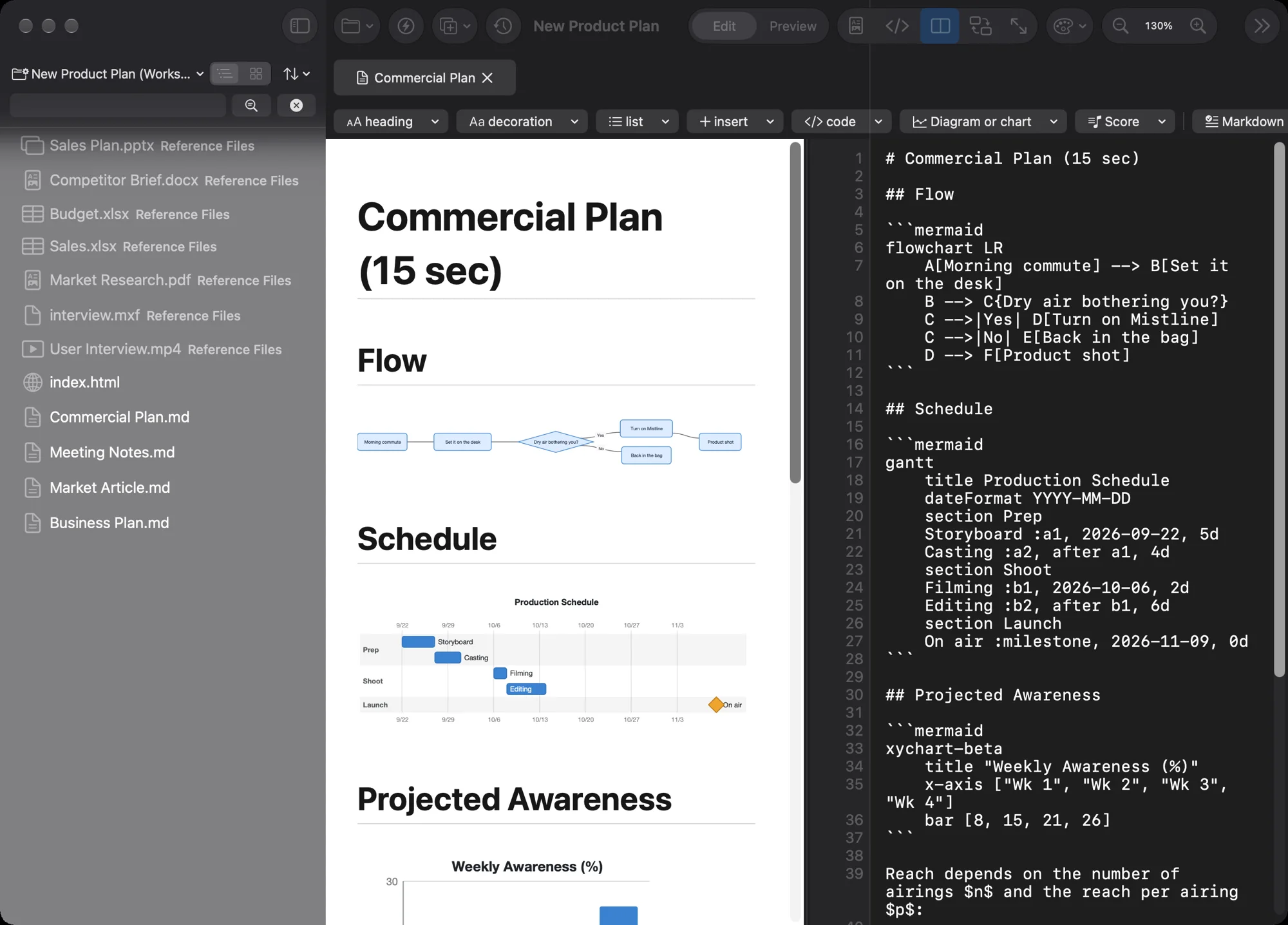
So what is Markdown?
Markdown is plain text with a few marks added. Start a line with # for a heading, - for a list, wrap words in ** for bold — and the screen tidies it up for you.
## This week
- Built **3** prototypes
- Next week: try them in the shop
This week
- Built 3 prototypes
- Next week: try them in the shop
AI chats are written in Markdown
The headings, lists and bold text in ChatGPT’s and Claude’s answers are Markdown that the screen has tidied up. That is why “##” and “**” come along when you copy an answer with the copy button and paste it.
The most natural form for AI
Because it is just text, AI can read it and write it as it is — no extracting the contents first, as with Word or PDF. Headings, lists and table borders are visible as characters, so the structure of the document comes across too.
Good for people, good for time
Simple enough to read even with the marks showing, and it opens in any app. It is not locked into one company’s format, so it stays readable for years. It can be compared character by character, which is how history shows exactly what changed.
The more work we do with AI, the more documents will be written in Markdown.
The document format that keeps on spreading — that is Markdown.
Diagrams, charts,
formulas, even sheet music.
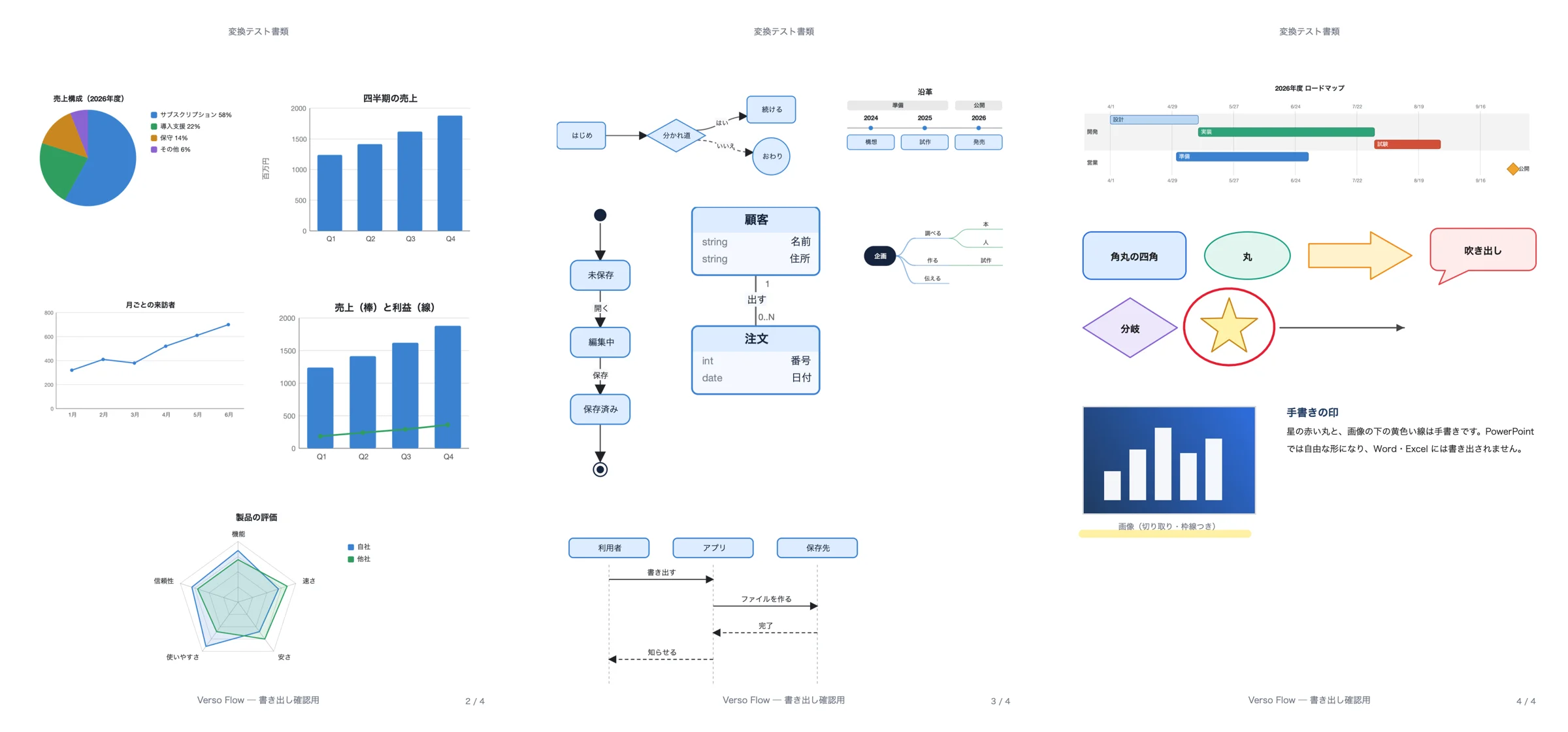
Some things are hard to say in words alone — put them right into your document. No need to learn the syntax from scratch: build them from an input form. Math formulas are supported, and chord charts and staff notation can be displayed and played back right there.
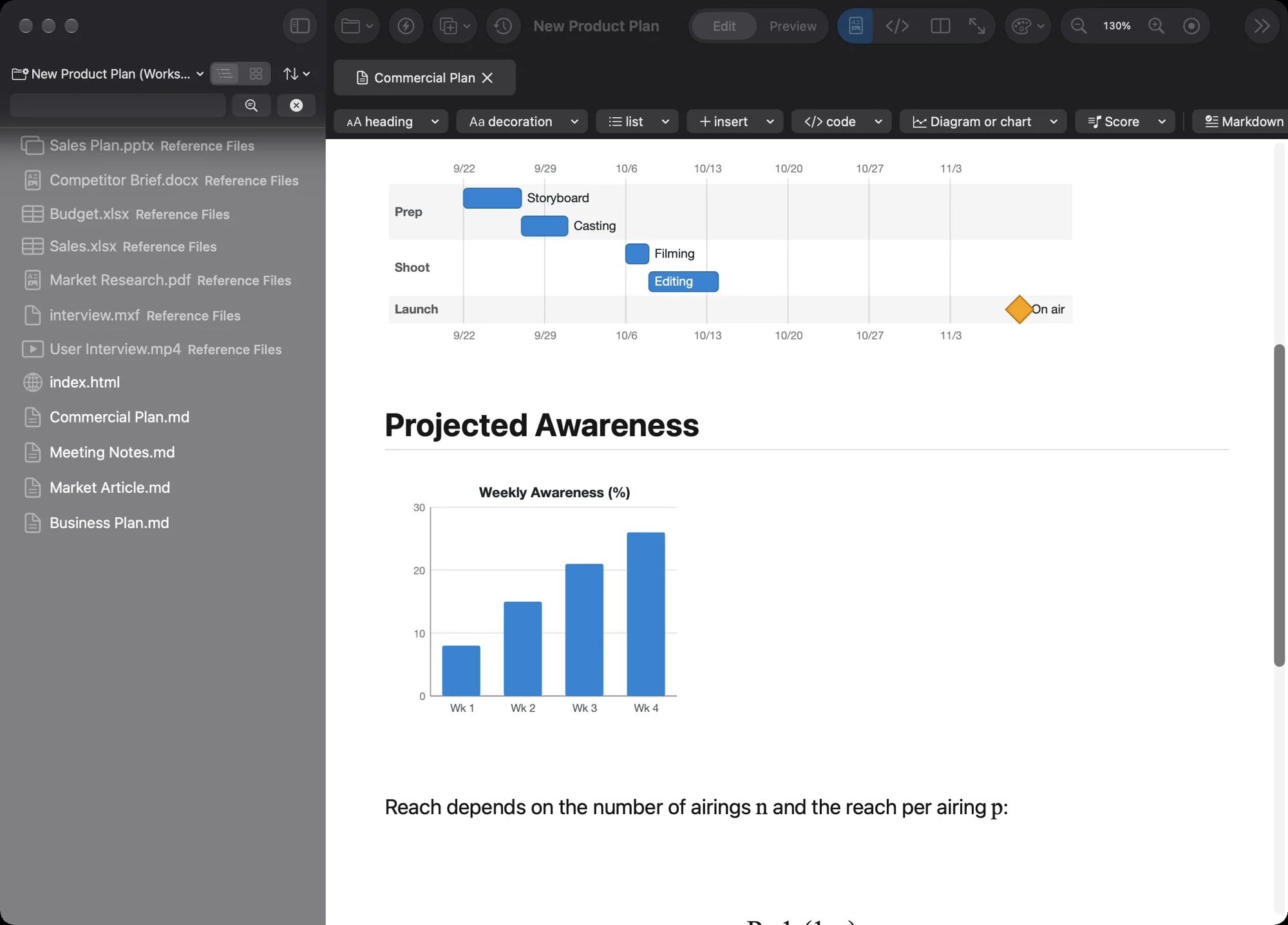
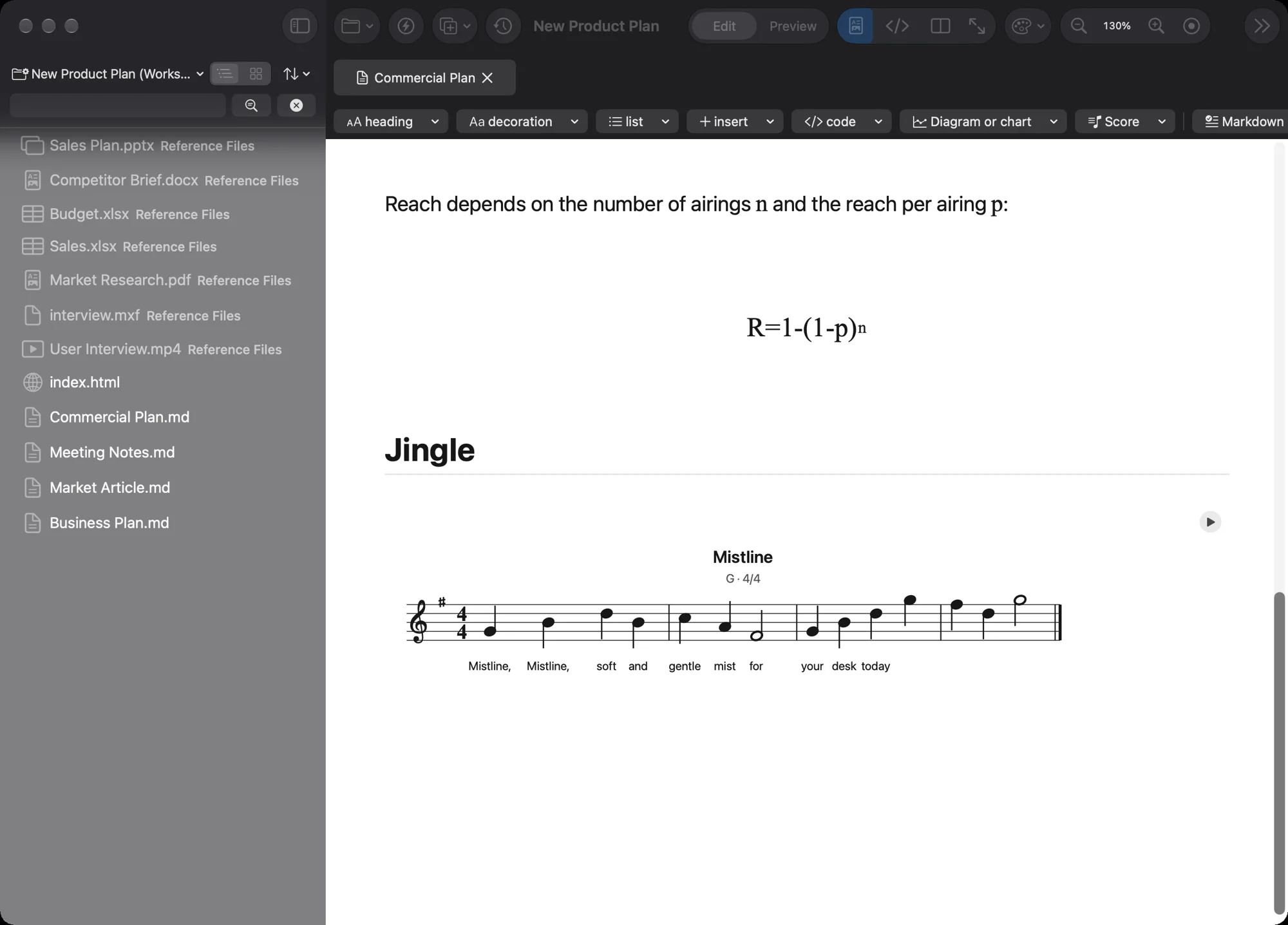
Flowchart / Sequence diagram / Gantt chart / Mind map / Timeline / State diagram / ER diagram / Pie chart / Bar chart / Line chart / Radar chart
Build documents,
right inside the PDF.
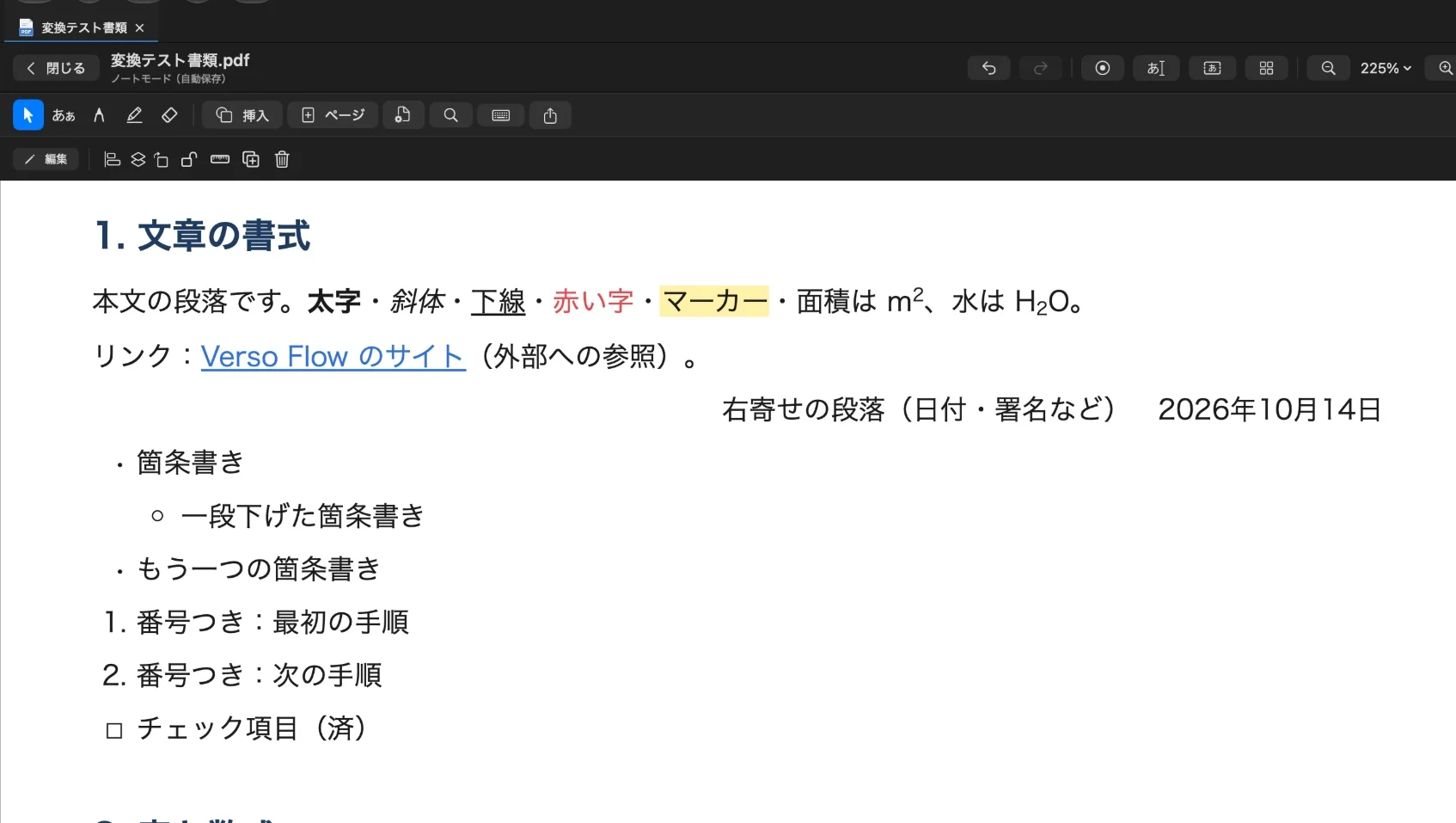
Start from a blank PDF and build from zero. Choose “PDF Note” under New, and you write text, tables, formulas, charts and diagrams on the PDF itself, edit them, and open them again. You can also add to a PDF you already have.
Write it. Edit it. Still a PDF.
Text stays text, tables stay tables, and charts are drawn from their numbers. Open it in any other PDF app and it is an ordinary PDF that looks the same. Open it again in Verso Flow and pick up where you left off.
- Text: bold, underline, color, marker, plate (a rounded background), lists
- Tables, formulas, code
- 5 chart types, 6 diagram types, Gantt charts
- Shapes, images, pen strokes
The pen works on Mac, Windows, iPhone and iPad (with a mouse, pen tablet, finger, touch or pen). Apple Pencil works on iPad only.
Still in the form you hand over.
Still editable.
If another app rewrites the inside of the PDF directly, it can disagree with Verso Flow’s editing data. The PDF still reads as it looks.
On iPad, record while you write.
Start recording, then take notes with Apple Pencil. Each stroke remembers where in the recording you wrote it. Tap a stroke later and playback starts from that moment, so “what did they say there?” is answered from your own handwriting.
Your strokes become the index of the recording.
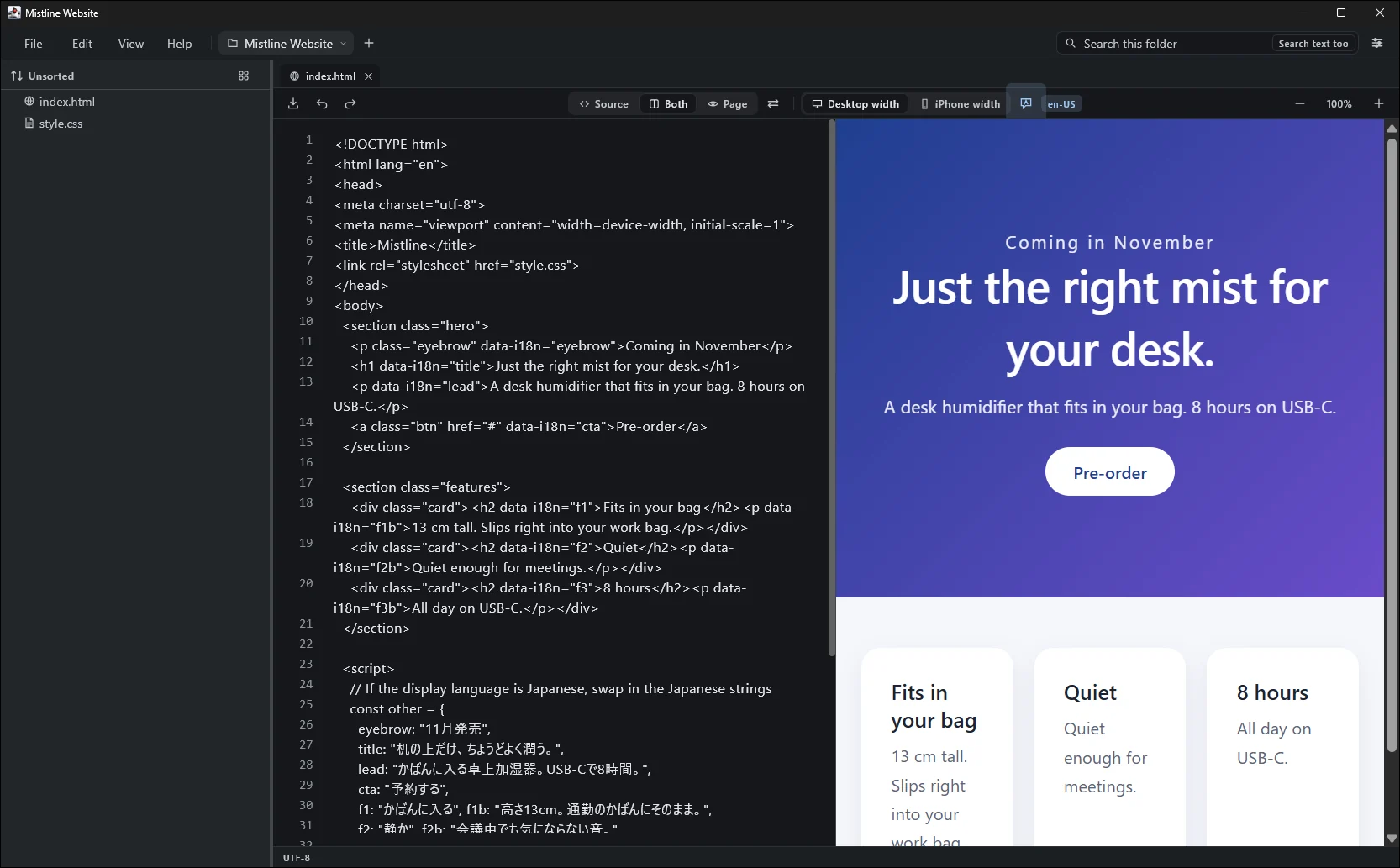
Write HTML and see it instantly.
AI edits the file directly.
Open an HTML file in Verso Flow. Edit the code and preview the page right there. Switch the display language to check multilingual pages, too.
Want changes? Ask AI.
- “Make this heading a bit shorter.”
- “Change these three columns to two.”
- “Give the English version the same layout.”
AI reads the HTML in your Verso Flow workspace and rewrites that file directly. No more copying code into AI, then copying the fix back into your editor.
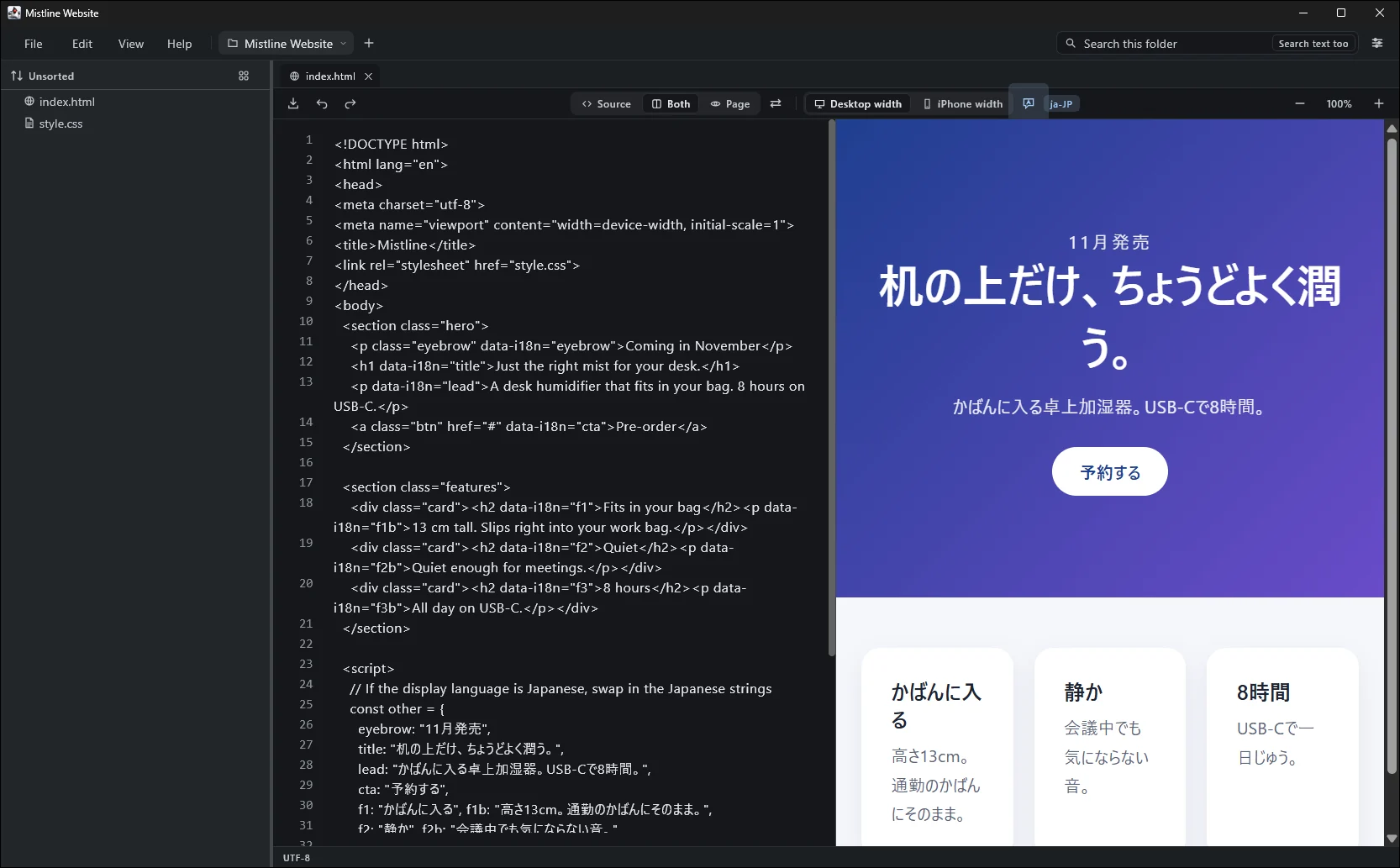
The real page, right beside the code.
And AI edits the very same file.
Write. Review. Let AI refine it. All on the same file.
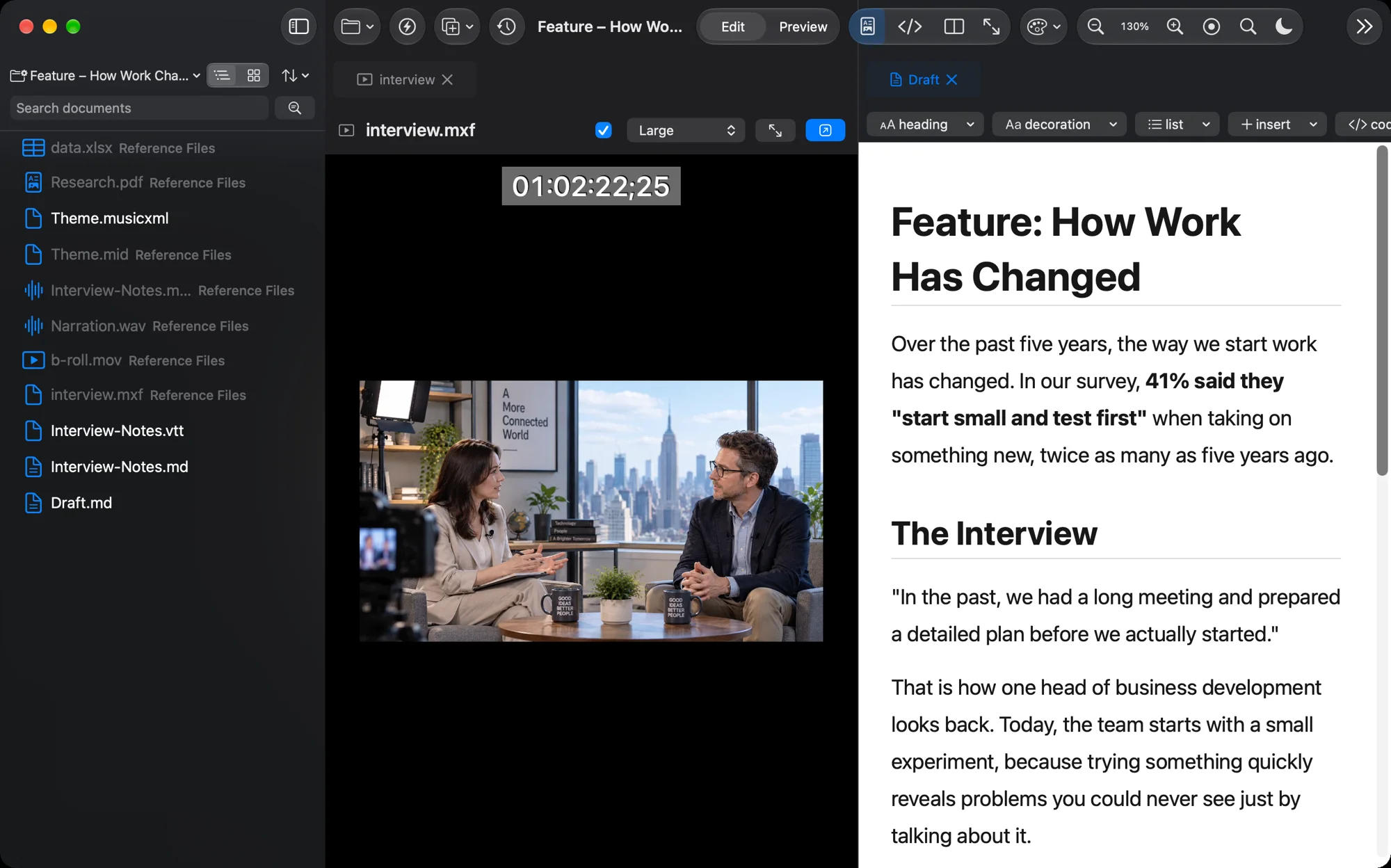
Documents aren’t
your only materials.
Video and audio files can run hundreds of megabytes — even gigabytes. Verso Flow doesn’t copy them into your Markdown documents. Media stays where it is; the document records only its location. So even when your work involves large videos, your documents stay light.
Play video and audio right where they are. MXF, used in video production, is supported. Play MIDI, and open MusicXML as sheet music you can play.
Not just text — your media is part of the workspace, too.
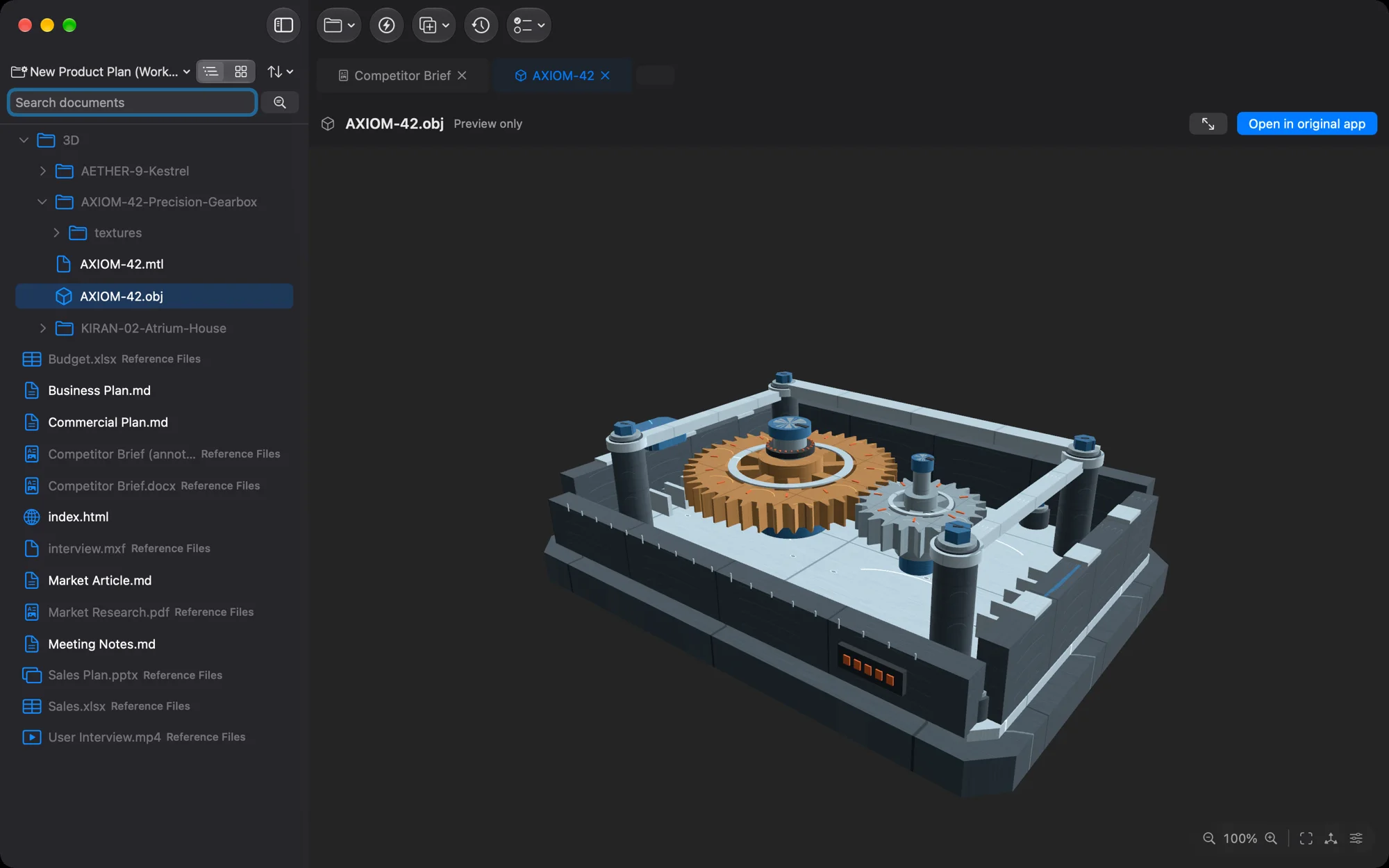
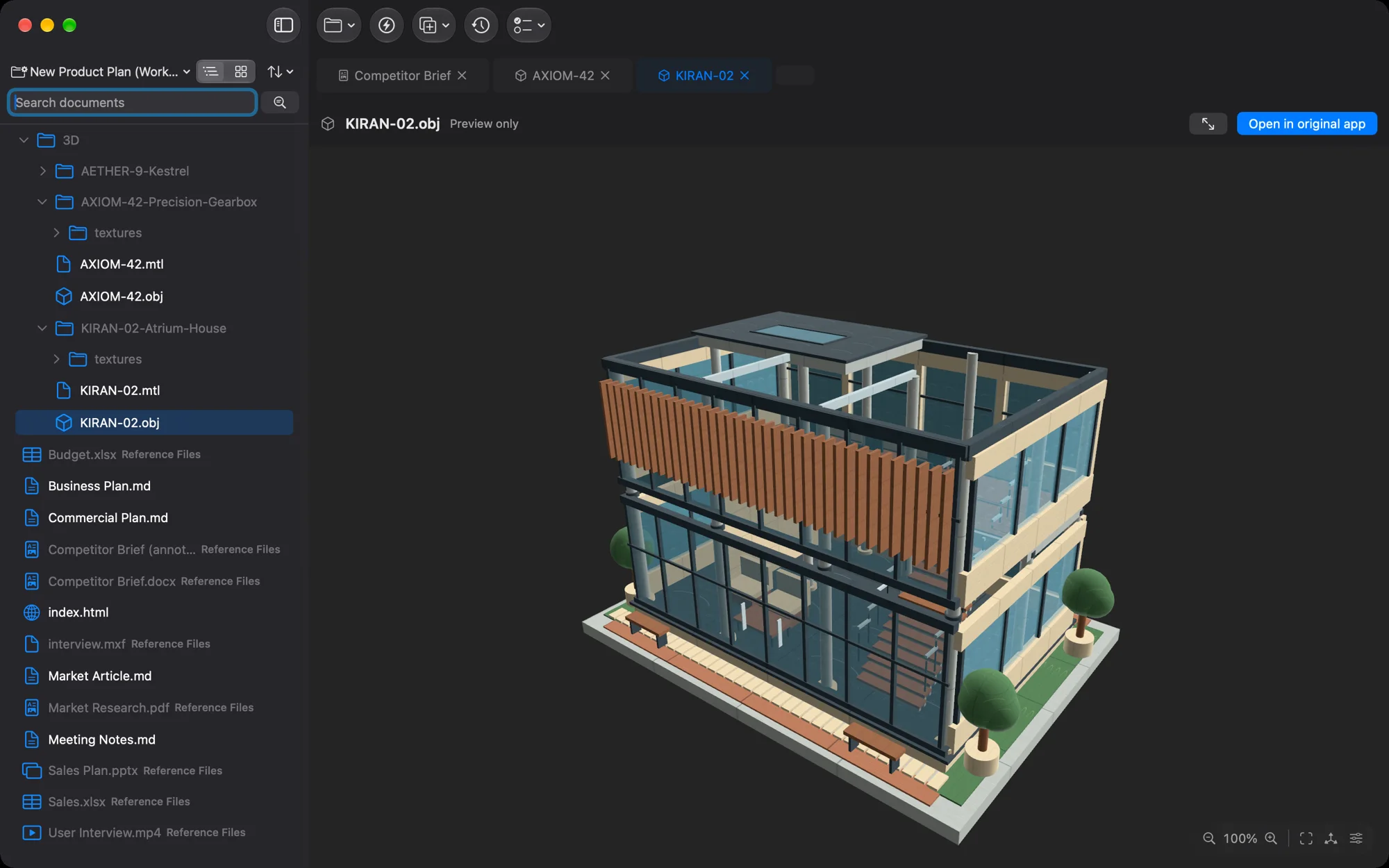
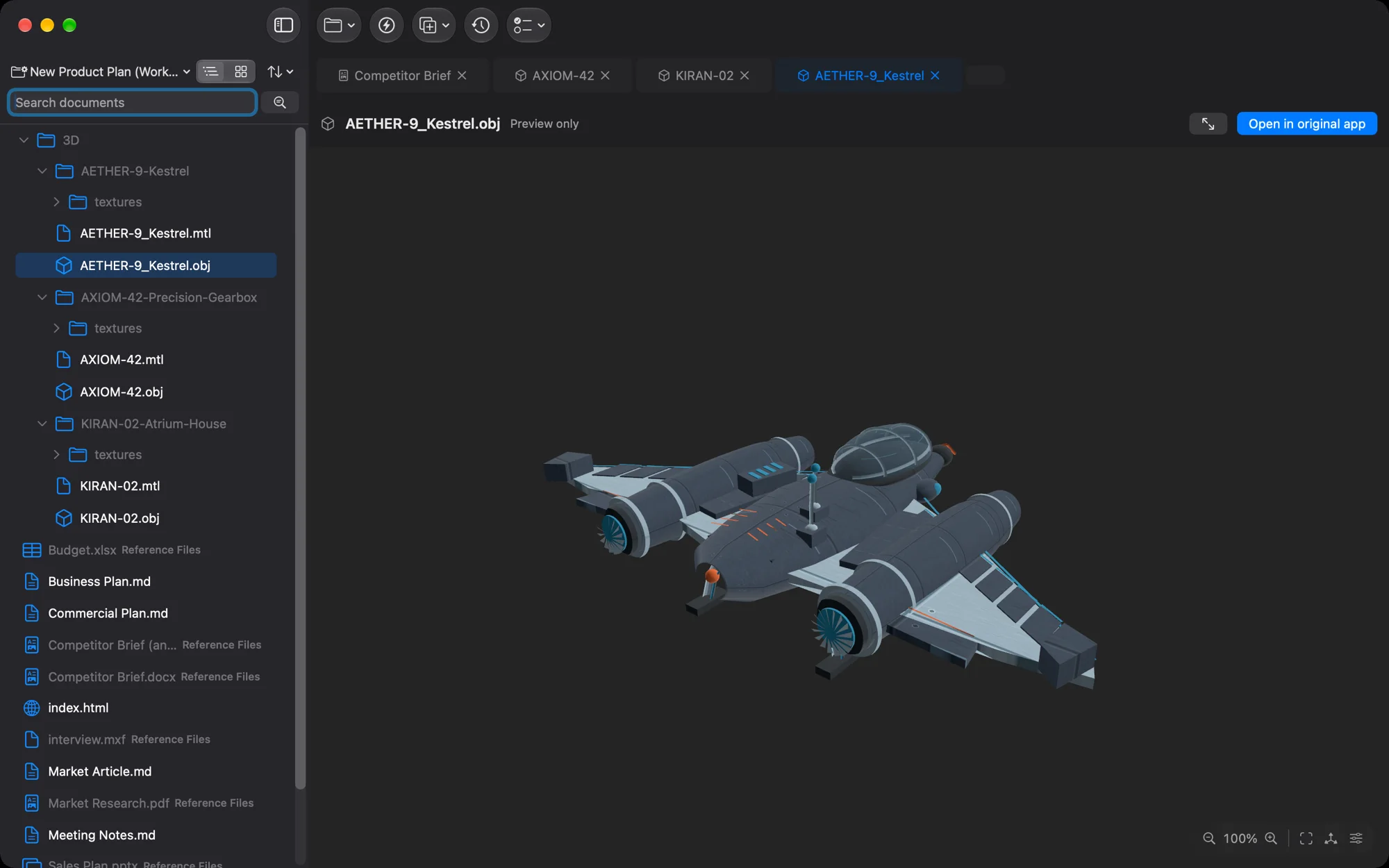
Turn 3-D models
around and check them.
Data for a 3-D printer, shapes exported from CAD, 3-D models made by AI. Open STL, OBJ, PLY and glTF as they are, and turn them around to look.
Choose the background and lighting, zoom in and out, and jump to front, right or top views in one click. CAD data that stands on the Z axis is recognized from its shape and stood upright.
For viewing only: shapes can't be edited, and animations and rigs don't play. USDZ, USD and DAE open on Mac, iPhone and iPad.
Take notes while you record.
Jump back to “that moment” in one click.
When the meeting starts, start recording in Verso Flow and take notes in Markdown as you go. Open a PDF or check an Excel sheet along the way — the recording keeps going.
Later, rereading your notes, you wonder: “What exactly did they say here?” Press the ▶ on that paragraph and listen again from the point in the recording where you started writing that note.
On supported systems, you can create a transcript too. Recordings, notes, source files, transcripts — no need to manage them separately.
Reread your notes.
Hear the conversation from that moment.
No more scrubbing from the start to find “what did they say here?”
On Mac, iPhone, and iPad (OS 26 or later), the transcript is created while you record. On Windows, it’s created after recording, using a separately installed transcription engine (whisper.cpp).
Keep your sources and footage beside you,
and keep writing.
A PDF on the left. Your draft on the right.
Need to check a number? Excel. Looking at past materials? PowerPoint. Watching reference footage? Video. MXF footage opens as is, too. Once you’ve checked what you need, go right back to your draft — no reopening a different app for every file.
You can also ask AI to polish your draft.
- “Cut this section by about 100 words.”
- “Suggest headline ideas from this draft.”
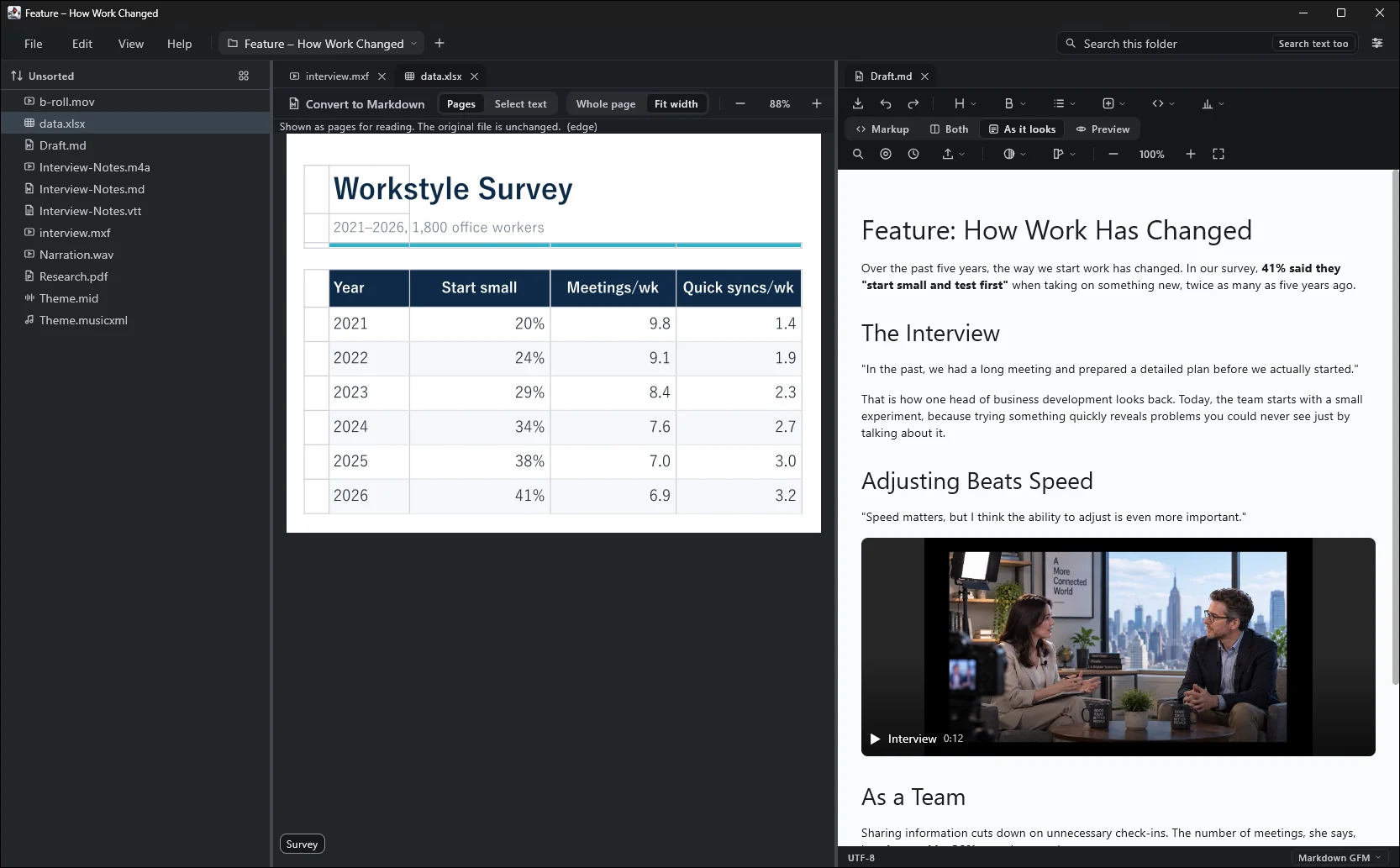
Write without stopping the footage.
Reviewing materials and writing — no longer separate tasks.
Word, slides and more,
straight from the pen.
You want to mark up a draft, or sketch an arrow on a slide. Until now that meant exporting to PDF, opening it in another app, writing, and saving again.
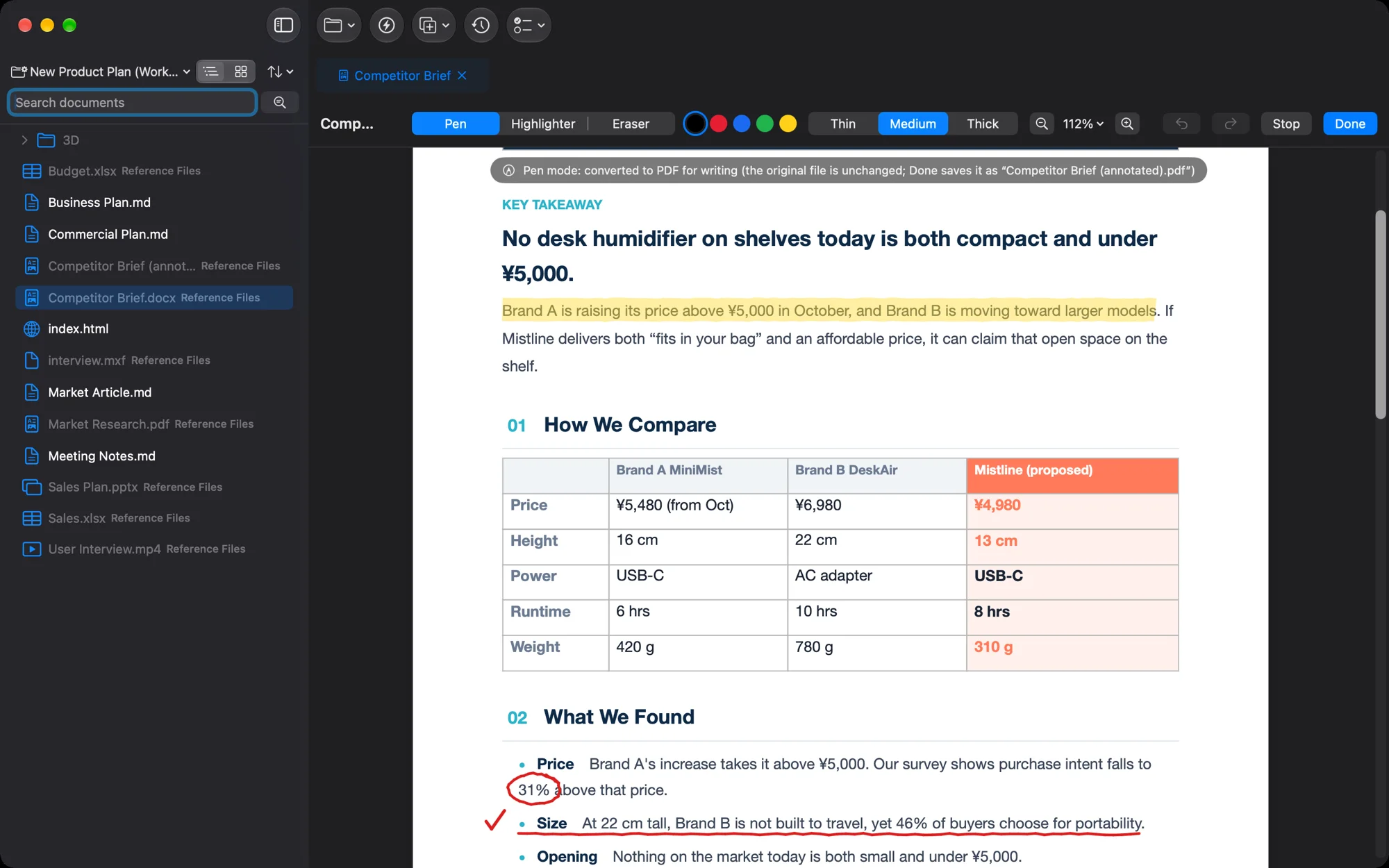
In Verso Flow, just switch the open document to Pen mode. For Word, Excel, PowerPoint, images and Markdown, Verso Flow converts to PDF on the spot, and your marks are saved next to the original as “name (annotated).pdf”. And of course you can write straight onto PDFs.
Apple Pencil on iPad, your finger on iPhone, a mouse or pen tablet on Mac, and a pen, touch or mouse on Windows.
No exporting.
Just mark it up.
Your markup sits in the same folder as the original, so you never hunt for which document it belongs to. Strokes are saved as standard PDF ink annotations, so other PDF apps show them too.
Markup on Word, Excel, PowerPoint and similar files is not written into the original file. Opening the original in its own app won't show the strokes, so send the “(annotated).pdf” instead.
Because Verso Flow does the PDF conversion, line breaks and page breaks may differ from a PDF made in the original app.
Different jobs.
The same steps.
Web production. Meetings. Planning and research. Writing and video production. At first glance, completely different kinds of work. But in practice, you keep repeating the same steps.
Along the way, the file types change — but with Verso Flow, your workspace doesn’t.
Word. Excel. PDF. HTML. Video. Markdown.
The files change.
Your flow doesn’t break.
Don’t hand your files to AI.
Bring AI into your workspace.
Every time you use AI: find the files. Upload them. Explain them. Get the answer. Put it back into your files.
Verso Flow cuts down on that back-and-forth. The ChatGPT and Claude desktop apps can work with the documents in the workspace you have open in Verso Flow. Instead of reshaping your work around AI, AI fits into the way you already work.
- When AI rewrites your text, the before and after are saved in History under the name ChatGPT or Claude.
- AI can only touch Markdown, text, and HTML documents inside the folder you have open in Verso Flow.
- Exports to Word or PDF are done by Verso Flow and saved next to the original document. Existing files with the same name are never overwritten.
- Nothing puts your documents on a public server. No OpenAI or Anthropic API key needed.
People and AI, in the same workspace, on the same files.
AI changes. Operating systems change.
Your files stay.
Verso Flow has no proprietary cloud and no proprietary file format.
Work on a Mac. Pick up on Windows. Switch AI tools. Switch services. Even stop using Verso Flow. Your work stays with you, as ordinary files.
That’s why Verso Flow
is “file-native.”
Every save
is a way back.
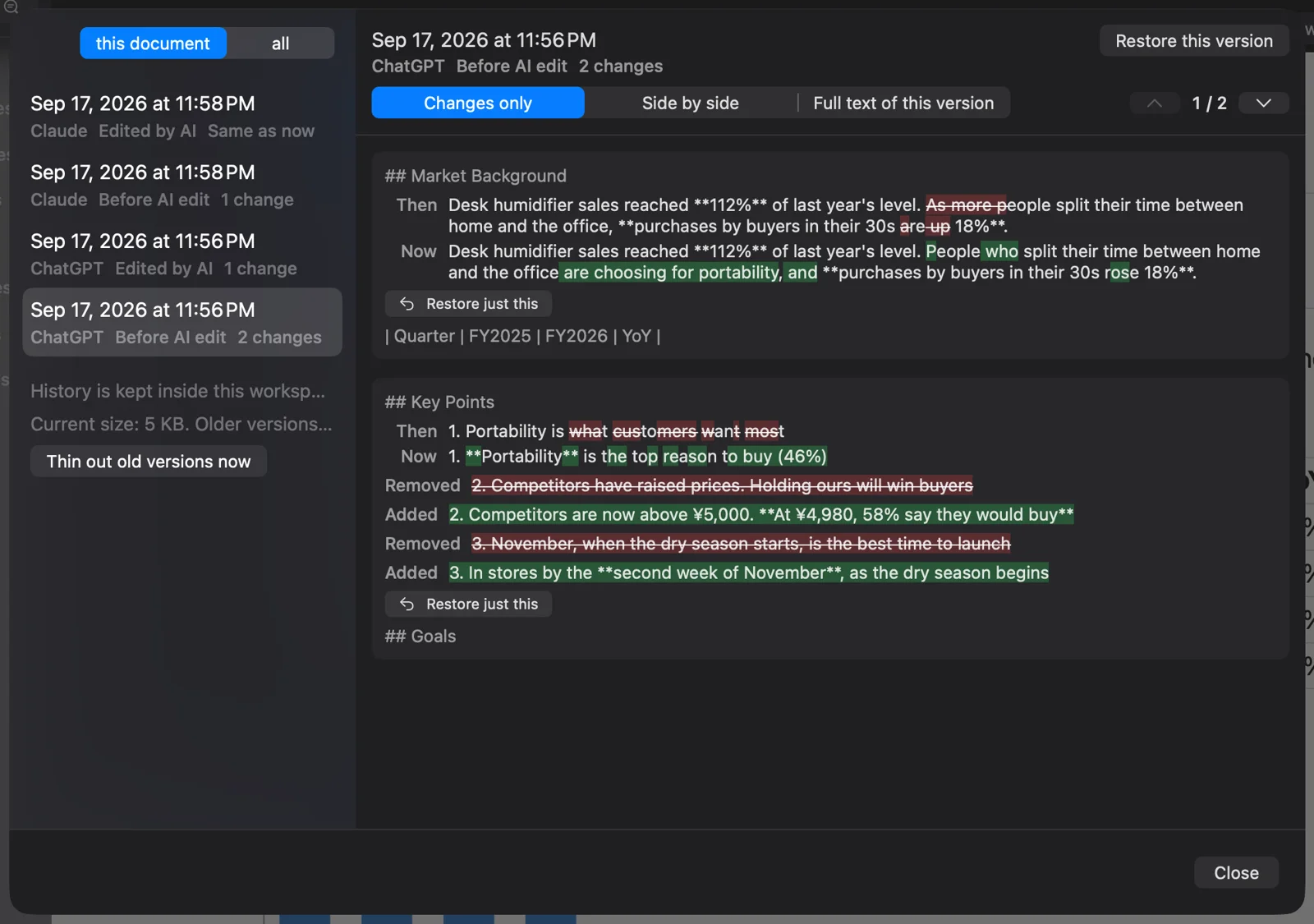
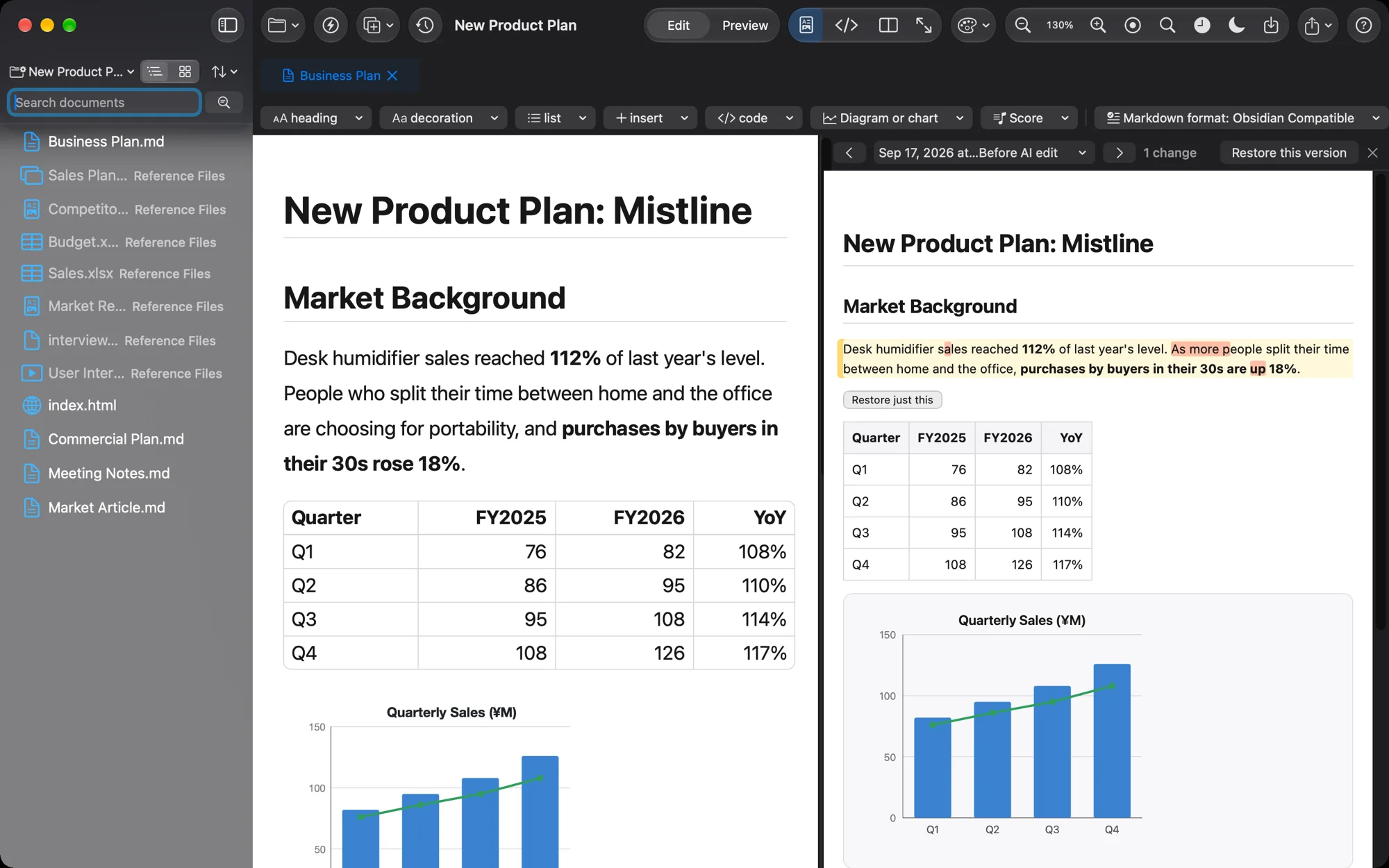
Verso Flow keeps what you saved as history. Pick a version and it shows what changed against the document now — removed text in red, added text in green.
If the earlier wording was better, restore just that change and keep every other edit. On Mac and Windows you can keep an old version beside the document you are writing and compare as you go.
Changes made by AI are recorded in History too. No Git knowledge required — though you can connect Git / GitHub if you want. Recovery is also supported if the app quits with unsaved changes.
Not just tools for writing,
but safeguards so you don’t lose it.
Git / GitHub integration is available on Mac and Windows.
Finally, in the format they use.
Keep your own work in Markdown — the people you share it with don’t need to use Markdown. Verso Flow exports to these formats:
Export to Markdown and batch conversion of multiple files are available on Mac.
Work in lightweight Markdown.
Switch to their format only when you hand it off.
From a note to
PowerPoint, Word and Excel.
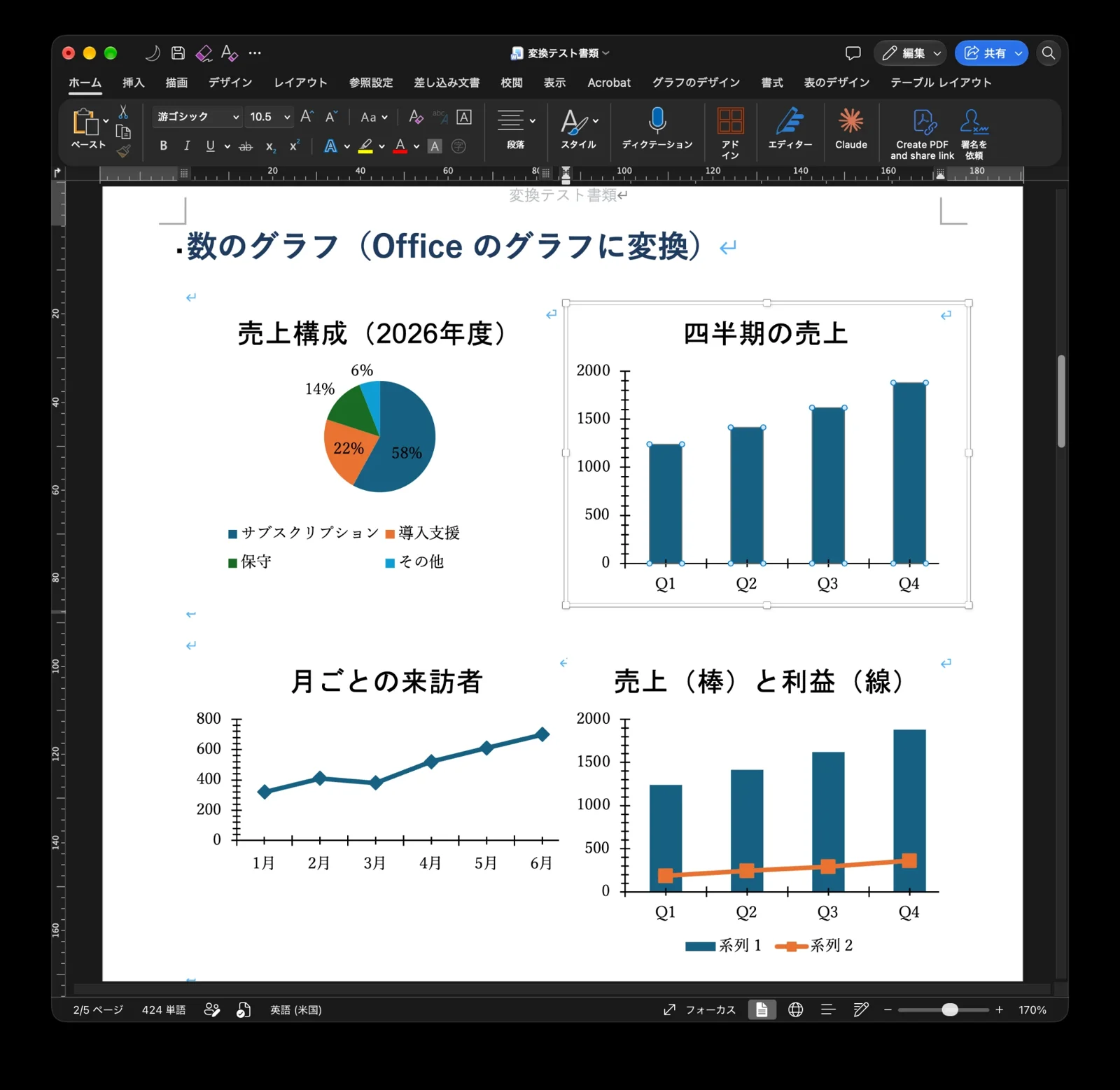
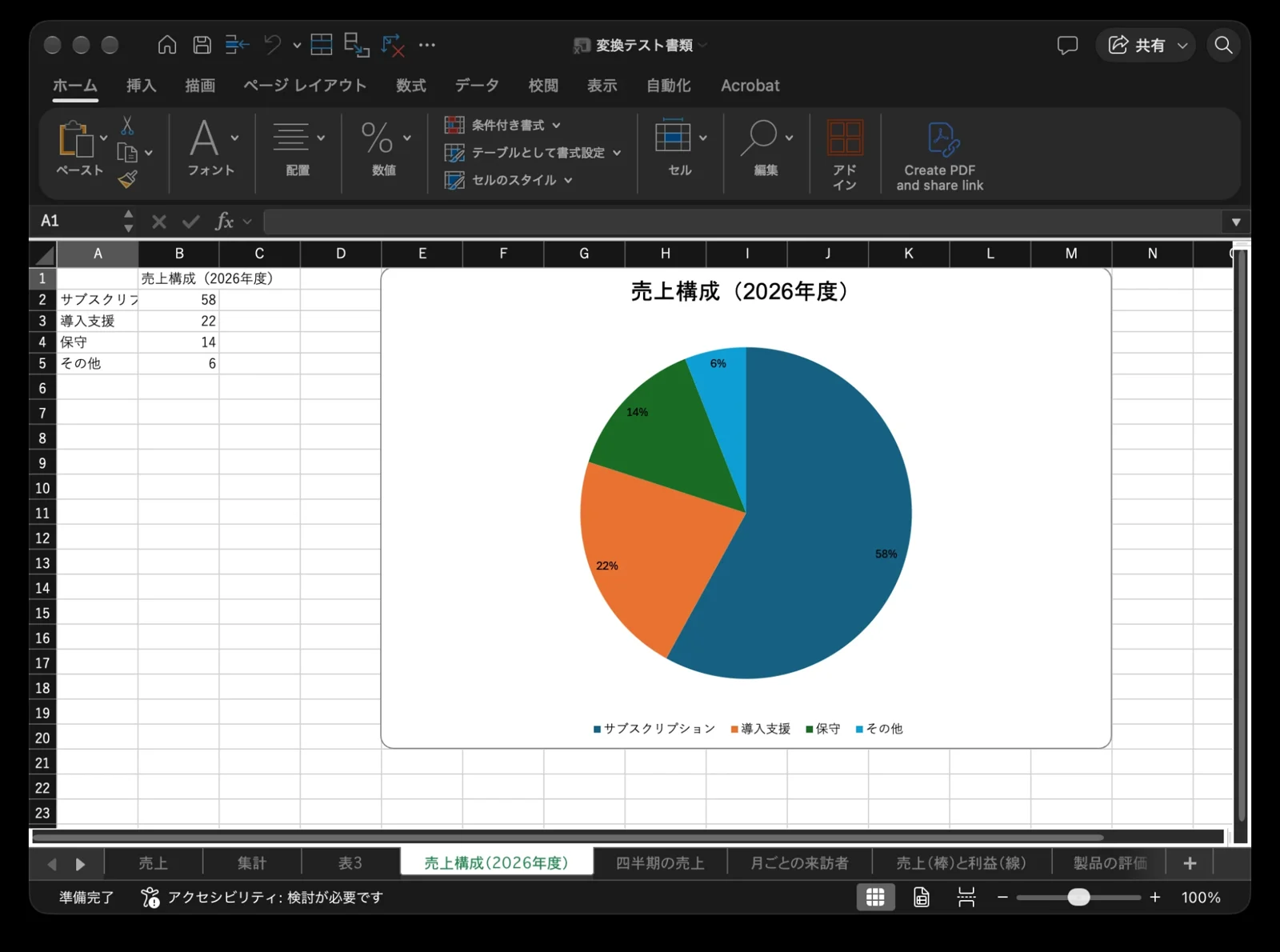
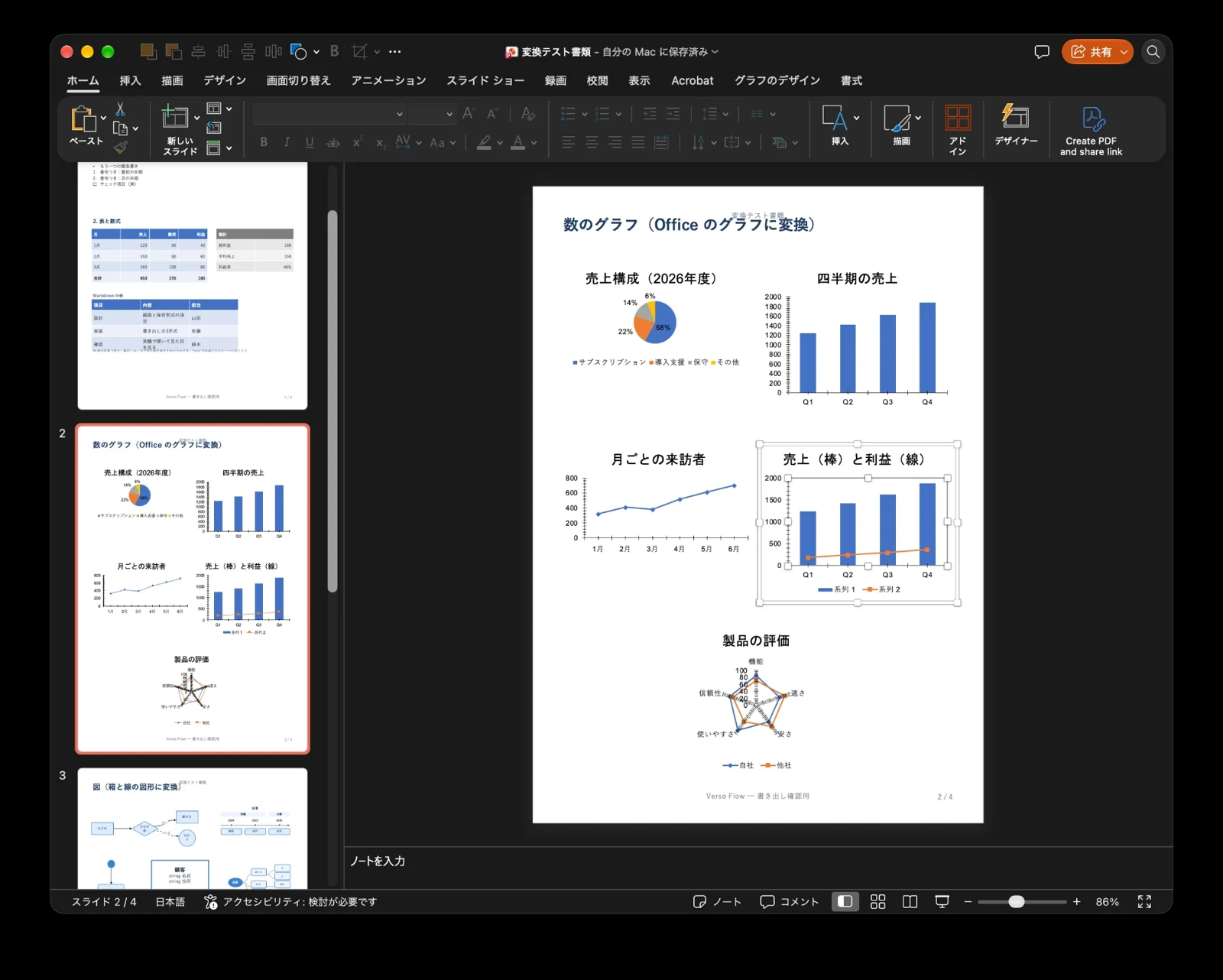
Beyond handing over a PDF, export to a form the other person can edit. It looks almost exactly the same.
- PowerPoint One slide per page. Charts become real PowerPoint charts with editable numbers; flowcharts, state diagrams, ER diagrams and Gantt charts become shapes you can edit afterwards.
- Word Text and tables flow in one after another.
- Excel Each table becomes its own sheet. Charts are Excel charts.
Word flows the content in, so page breaks differ from the original pages. Available on Mac and Windows.
On Mac. On Windows.
Verso Flow lets you do the same work on Mac and Windows. Windows at the office, Mac at home — or a team where everyone uses a different OS. Either way, you don’t have to change workspaces.
Same folder.
Same files.
Same Verso Flow.
iPhone / iPad
With a workspace on iCloud Drive, you can reach the same workspace from iPhone and iPad. Work on Mac or Windows, review on the go. It’s still one workspace.
Centered on your work, not your OS.
Between Mac and Windows, share the same folder the way you already do — OneDrive, Dropbox, Git / GitHub, and so on. The history format is the same on Mac and Windows.
What Verso Flow wants to reduce.
The point isn’t to make everything in Verso Flow. Word has its role. Excel has its role. Video editing has apps built for it.
What Verso Flow wants to reduce is all the small moves in between, in work that uses those apps.
Find. Open. Check. Close.
Switch apps. Copy. Go back again.
Less of that, so you can
spend your time thinking
and making.
That’s Verso Flow.
Start with
the work folder you already use.
No need to prepare anything for Verso Flow. Just open one of the work folders you use every day.
Word. Excel. PDF. Video. HTML. Markdown.
The files already there
become your workspace.
All core features are free.
There’s no subscription. If you like Verso Flow, you can support its development with a one-time “Supporter” purchase. Features are the same no matter which amount you choose.
The iPhone / iPad app shows ads. Purchasing any Supporter option removes them.
Everything it can do.
Files it opens
- Markdown
- Write, edit as it looks, preview. .md .markdown .mdown .mkd .mdxMacWindowsiPhone / iPad
- Text and code
- .txt .json .xml .yaml .css .sql .swift .kt .js .ts .py and more. Editable, and switchable to a reading view. Code is colored by language.MacWindowsiPhone / iPad
- Page view, fit width / whole page / actual size, printing. Converted to Markdown, lines are rejoined into paragraphs.MacWindowsiPhone / iPad
- Word (.docx)
- As it looks: columns, headers and footers, footnotes, tables, shapes, charts, ruby and formulas are all drawn. Page breaks are checked against PDFs from Word for Windows. A text-only view is one click away. On Mac and Windows, text you select and copy in the preview pastes into Word with its original characters and formatting.MacWindowsiPhone / iPad
- Excel (.xlsx, .xlsm)
- Borders, merged cells, number formats, conditional formatting (color scales, data bars, icons), sparklines, shapes and charts. Sheets switch on tabs below. Windows also opens OpenDocument (.ods).MacWindowsiPhone / iPad
- PowerPoint (.pptx)
- Slides as they are: shapes, tables, charts and master inheritance are drawn. 3-D and SmartArt are not.MacWindowsiPhone / iPad
- EPUB and Aozora Bunko
- Read as a book: vertical writing, two-page spread, pocket / A5 / A4 paper, font size and line height. Aozora Bunko text keeps its ruby and emphasis dots. DRM-locked books are not opened.MacWindowsiPhone / iPad
- Images
- .png .jpg .gif .webp .heic .tiff .bmp .ico and more. Choose what shows through transparency: checkerboard, black or white.MacWindowsiPhone / iPad
- Video and audio
- .mp4 .mov .mkv .avi .webm .mpg and more, plus .mp3 .m4a .wav .flac and more. On Mac, J/K/L shuttle and step one frame (five with Shift). Windows plays them itself with FFmpeg.MacWindowsiPhone / iPad
- MXF and timecode
- MXF is unwrapped and played in-app (MPEG-2, H.264, ProRes). The start timecode is read from the clip, drop-frame included, and can be burned into the picture at four sizes.MacWindows
- MIDI and scores
- .mid plays as it is (on iPhone with a built-in piano voice). MusicXML (.musicxml, .mxl) opens as a staff score you can play, and can also be converted to Markdown.MacWindowsiPhone / iPad
- 3-D models
- .stl .obj .ply .gltf .glb (Mac, iPhone and iPad also .usdz .usd .dae). Rotate, zoom, view from front, right or top, and choose background and lighting. For viewing only: shapes can't be edited, and animations and rigs don't play.MacWindowsiPhone / iPad
- LINE chat backups
- The exported .txt appears as chat bubbles, grouped by day, your own messages in green. Photos, stickers and calls show as markers. Pick which participant is you, and search inside.MacWindowsiPhone / iPad
- Email (.eml, .msg)
- Subject, recipients, date, body and the attachment list. Outlook .msg opens too. Remote images are never fetched, so opening a message is never reported back.MacWindowsiPhone / iPad
- Calendar and contacts
- .ics shows as a list and a month grid — just to look at, nothing is imported. .vcf shows as cards whose phone, email, address and URL are tappable.MacWindowsiPhone / iPad
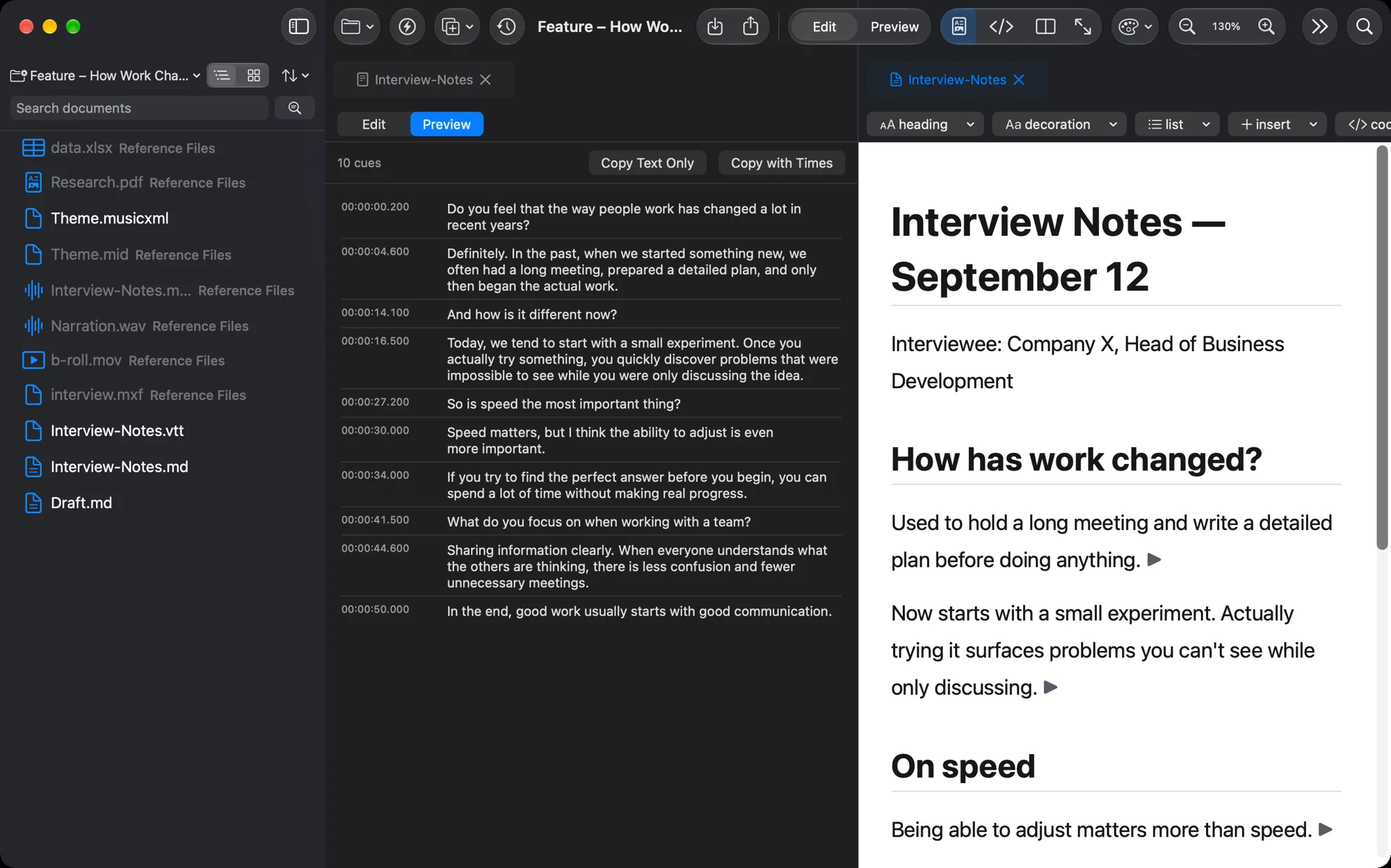
- Subtitles (.srt, .vtt)
- A time column beside the lines. Copy with or without the times; out-of-order timings are pointed out.MacWindowsiPhone / iPad
- CSV and TSV
- Shown as a table, values exactly as written (numbers keep their leading zeros). Copy them as a Markdown table.MacWindowsiPhone / iPad
- ZIP
- Lists what is inside without extracting, and lets you peek at a single entry. Japanese names come out right.MacWindowsiPhone / iPad
- HTML
- Source on one side, the real page on the other, scripts running. Zoom, an iPhone-width frame and a page-language switch.MacWindowsiPhone / iPad
Writing
- Three faces
- As it looks, markup, or both. In the as-it-looks face you never need the syntax; with two panes you can type in the right one too.MacWindowsiPhone / iPad
- Markdown flavours
- CommonMark, GFM (tables, tasks, strikethrough) and Obsidian-compatible (wiki links [[…]] and embeds). Set per document, identical on Mac, Windows and iPhone.MacWindowsiPhone / iPad
- Writing tools
- Headings, bullets, numbers, tasks, quotes, tables, code, callouts (note, warning and friends), footnotes, definition lists, text colour, marker, rules and a table of contents. Tables are edited as a grid.MacWindowsiPhone / iPad
- Diagrams (10 kinds)
- Flowchart, sequence, state, entity relationship, bar, line, schedule (Gantt), share (pie), radar, mind map and timeline — filled in as forms, not syntax. A table can become a chart.MacWindowsiPhone / iPad
- Formulas, scores and chords
- Formulas with $…$ and $$…$$. ABC notation is engraved as a staff and plays on the spot. Chord sheets (ChordPro) and chord progressions too.MacWindowsiPhone / iPad
- Pasting and inserting
- Paste from the web or a word processor and headings, tables and lists survive as Markdown. Pasted images land in a folder beside the document; video and audio are referenced, not copied, and play in place.MacWindowsiPhone / iPad
- Writing with a pen
- PDFs are written on directly. Word, Excel, PowerPoint, images, Markdown, email and EPUB are converted to PDF first and saved next to the original as “(annotated).pdf” (the original file is untouched). Things read as tables (CSV, calendars), audio, video and 3-D models can't be written on.MacWindowsiPhone / iPad
- Reading and tuning
- Find inside the document, scroll editor and preview together, line numbers, zoom (50–300 %) and full screen. Preview looks are choosable, and you can make your own.MacWindowsiPhone / iPad
Search and workspace
- Cloud folders
- Open the folder you already sync — iCloud Drive, OneDrive, Dropbox, Google Drive — as it is; on iPhone and iPad, any folder that appears in the Files app. History lives inside that folder, so it travels with it.MacWindowsiPhone / iPad
- Search the whole workspace
- By name and by content. PowerPoint hits say “Slide 8”, Excel hits name the sheet and cell. Nothing to index or import first.MacWindowsiPhone / iPad
- What is searched
- Markdown, text, HTML, CSV, subtitles, Word, PDF (with the page), PowerPoint (with the slide), Excel (with the sheet and cell), email (subject and body), EPUB (chapter by chapter) and ZIP (the names inside). The open document can be searched too.MacWindowsiPhone / iPad
- Working in the folder
- Tabs, side-by-side or stacked panes, several windows, sorting, a thumbnail view (Mac), rename, move, duplicate and trash (with undo), hidden folders, and quick open.MacWindowsiPhone / iPad
History
- Save points
- Every save keeps that text inside the workspace (.versoflow). No Git needed. In an iCloud folder, a version written on the Mac can be restored on the iPhone.MacWindowsiPhone / iPad
- What changed
- Pick a version to see how it differs from the document now: “Changes only”, “Side by side” or “Full text of this version”. Inside a changed paragraph only the changed characters are coloured — removed in red, added in green. iPhone has no side-by-side view.MacWindowsiPhone / iPad
- Undo just one part
- Each change has “Restore just this”; every other edit stays. Whole versions can be restored too. Either way the text stays unsaved until you decide. Old text can also be selected and copied.MacWindowsiPhone / iPad
- An old version beside your draft
- “Compare with History” puts an old version to the right of the document you are writing, in the same face (as it looks or markup). Pick a version and the right side follows, with the changes coloured.MacWindows
- How versions are kept
- Up to 60 versions per document: the last 20 verbatim, then daily, weekly and monthly, and the oldest is always kept.MacWindowsiPhone / iPad
- Git and GitHub
- On Mac and Windows you can also keep history with Git and push to GitHub: save points (commits), diffs, restoring a single file, excluding oversized files. The wording switches between plain words and Git terms.MacWindows
Export
- Export
- Word (.docx), PDF, HTML and Markdown. The original is never rewritten — a new file appears beside it, and an existing name is never overwritten.MacWindowsiPhone / iPad
- What Word keeps
- Headings, bold, links, text colour, tables, lists, tasks as ☑ / ☐ and images as real pictures. Diagrams are drawn and embedded too.MacWindowsiPhone / iPad
- Convert in bulk
- Turn a selection into Markdown, HTML, PDF or Word at once. Markdown can be made from Word, PDF, Excel, PowerPoint, RTF, ODT, CSV, subtitles, email, calendars, contacts, a ZIP listing and MusicXML (Mac).MaciPhone / iPad
- Printing
- Printing uses the look you chose on screen and the same rendering as the export, so screen, PDF and paper agree.MacWindowsiPhone / iPad
Working with AI
- How it connects
- Claude desktop and ChatGPT desktop can read and write the documents in the folder you have open. No API key needed. Claude works on the free plan; ChatGPT needs a plan that allows local connectors (Work and similar).MacWindows
- What it can do (13)
- List, read, create, rewrite, append, replace just a part, search, read the document you have open, export, open it in the app, move to trash, rename and move.MacWindows
- What it may touch
- Only inside the folder you have open, and only .md, .markdown, .txt and .html. The connection stays on this machine (127.0.0.1) and never leaves it.MacWindows
- Every AI edit is recorded
- When AI rewrites something, the before and after are kept in history under the name Claude or ChatGPT. You can go back at any time.MacWindows
Recording and importing
- Record while you write
- The audio (.m4a) is kept beside the document, and each paragraph gets a marker for the moment you started writing it. Click it later and playback starts there.MacWindowsiPhone / iPad
- Transcription
- Speech is transcribed while recording and saved as a .vtt beside it. Mac and iPhone use the OS recogniser (macOS 26 / iOS 26 and later, entirely on the device). Windows uses whisper.cpp if you install it yourself.MacWindowsiPhone / iPad
- Bringing things in
- A web page can be saved as the article only, the whole page or just the link, keeping its source and date. Things also arrive by share menu or drag, and Apple Notes come across as Markdown with their pictures.MaciPhone / iPad
Systems, languages, price
- Where it runs
- macOS 14 or later, Windows 10 / 11 (64-bit), iOS and iPadOS 26 or later.MacWindowsiPhone / iPad
- Interface languages
- Japanese, English, Traditional Chinese, Korean and German — the same on Mac, Windows and iPhone.MacWindowsiPhone / iPad
- Price
- Every core feature is free and there is no subscription. The one-off “Supporter” purchase adds extra looks, which carry through to PDF and printing; every price unlocks exactly the same thing.MacWindowsiPhone / iPad
- On iPhone and iPad
- Open the same folder to view, search, write and go back in history. Long-press a file to copy, share or paste it, and drag files in from other apps. Git and GitHub, split panes, thumbnails and copying objects out of Office pages are Mac and Windows features. Ads appear, and any Supporter purchase removes them.iPhone / iPad